Review a draft workflow and publish it
Read a draft workflow, change any step that needs it, and publish it to get its link.
Would you like to be walked through this on your own screen? You’ll be guided one step at a time, and you do every click yourself.
It needs Chrome or Edge on a computer.
This guided help needs a computer. You’re welcome to open this page on one.
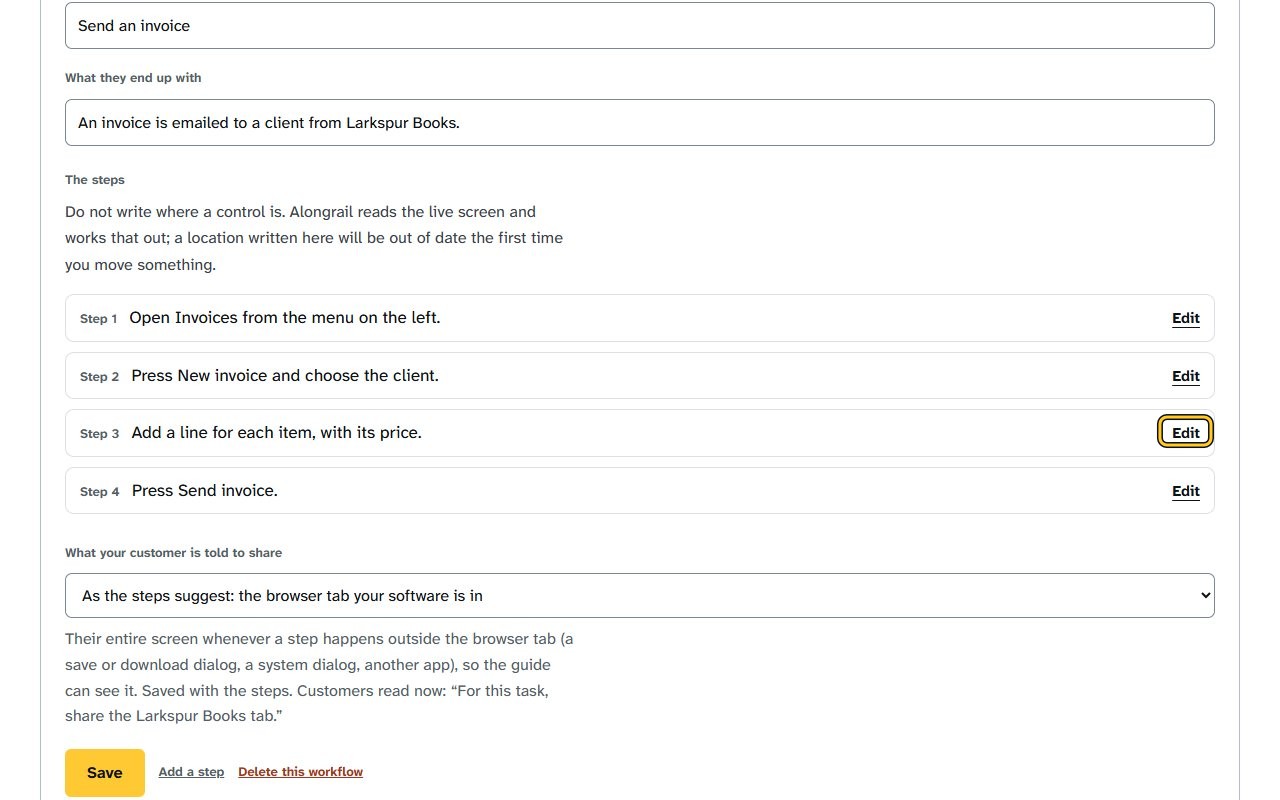
Click Edit beside the step you want to change; the step opens, showing its “What to do” text and where it comes from.
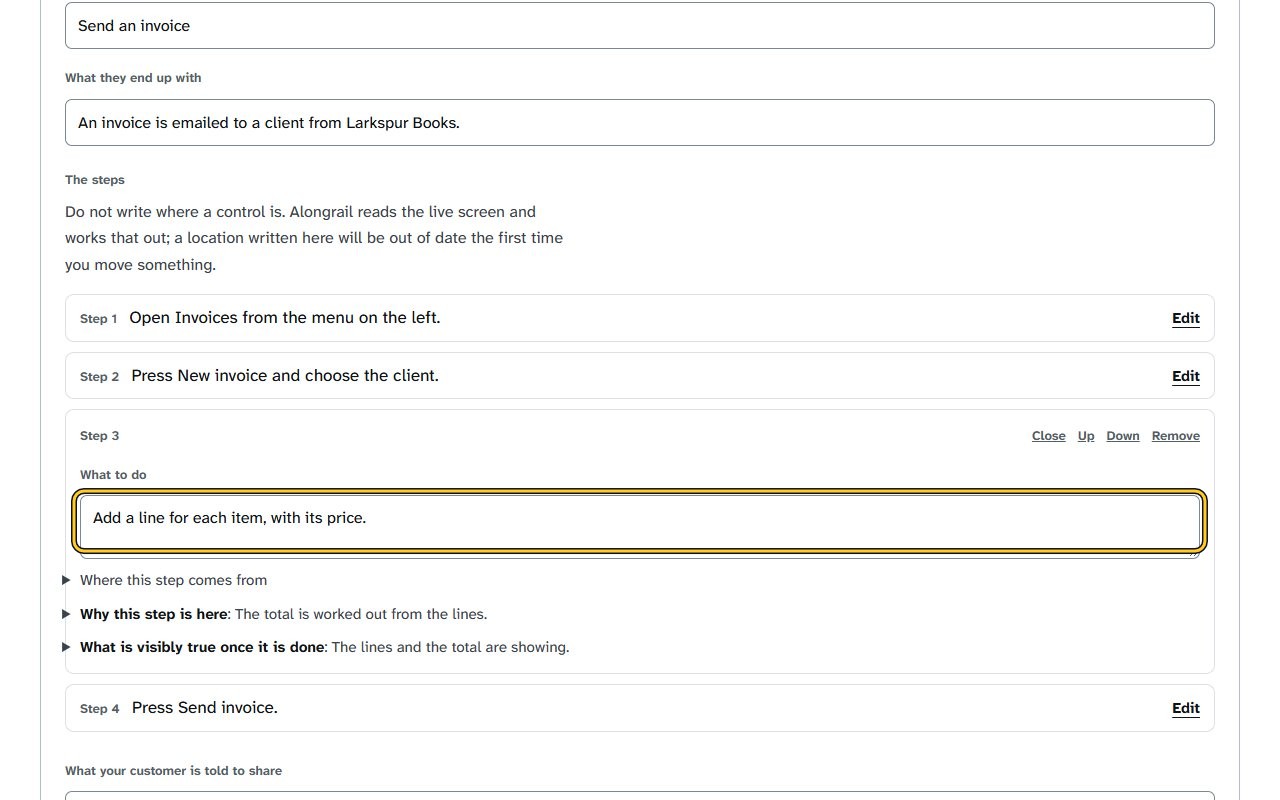
Change the text in the What to do field to describe the step; the field shows the updated step description.
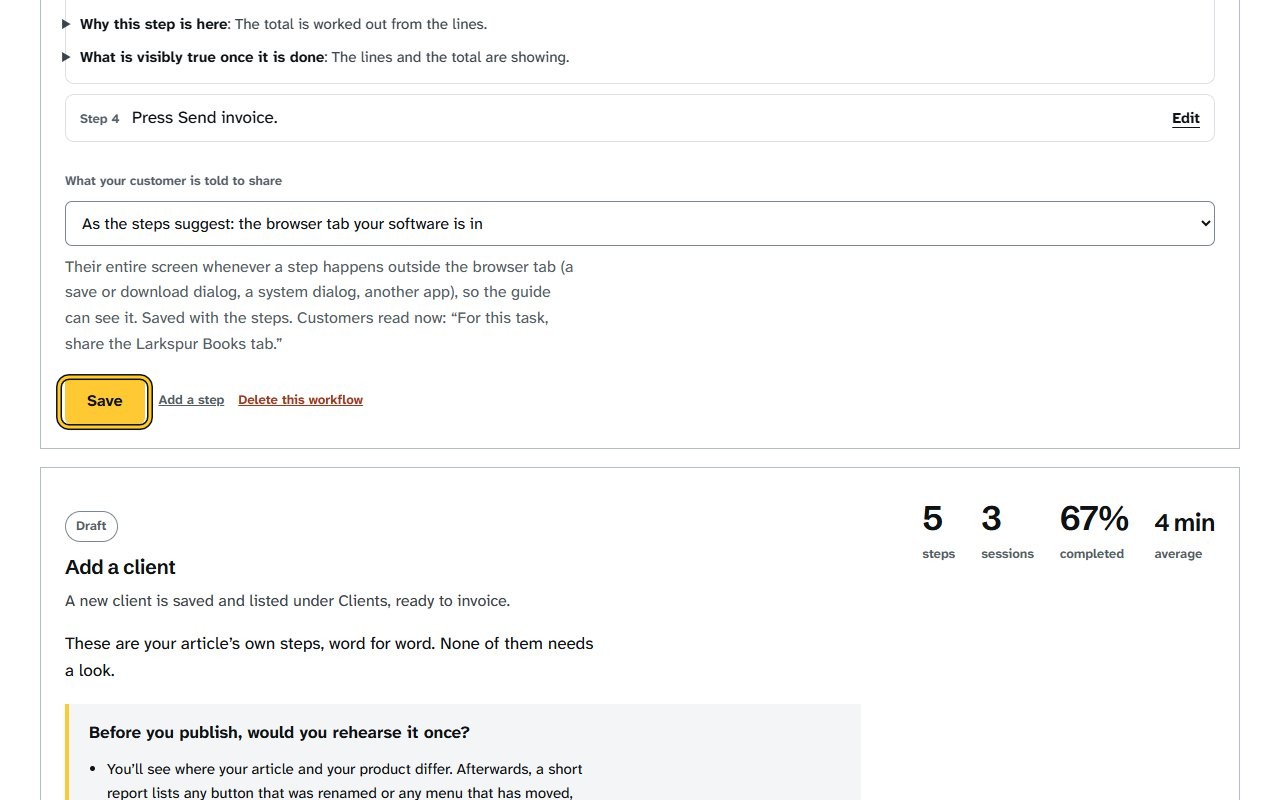
Click Save; the workflow scrolls to show the Rehearse and Publish and get the link buttons.
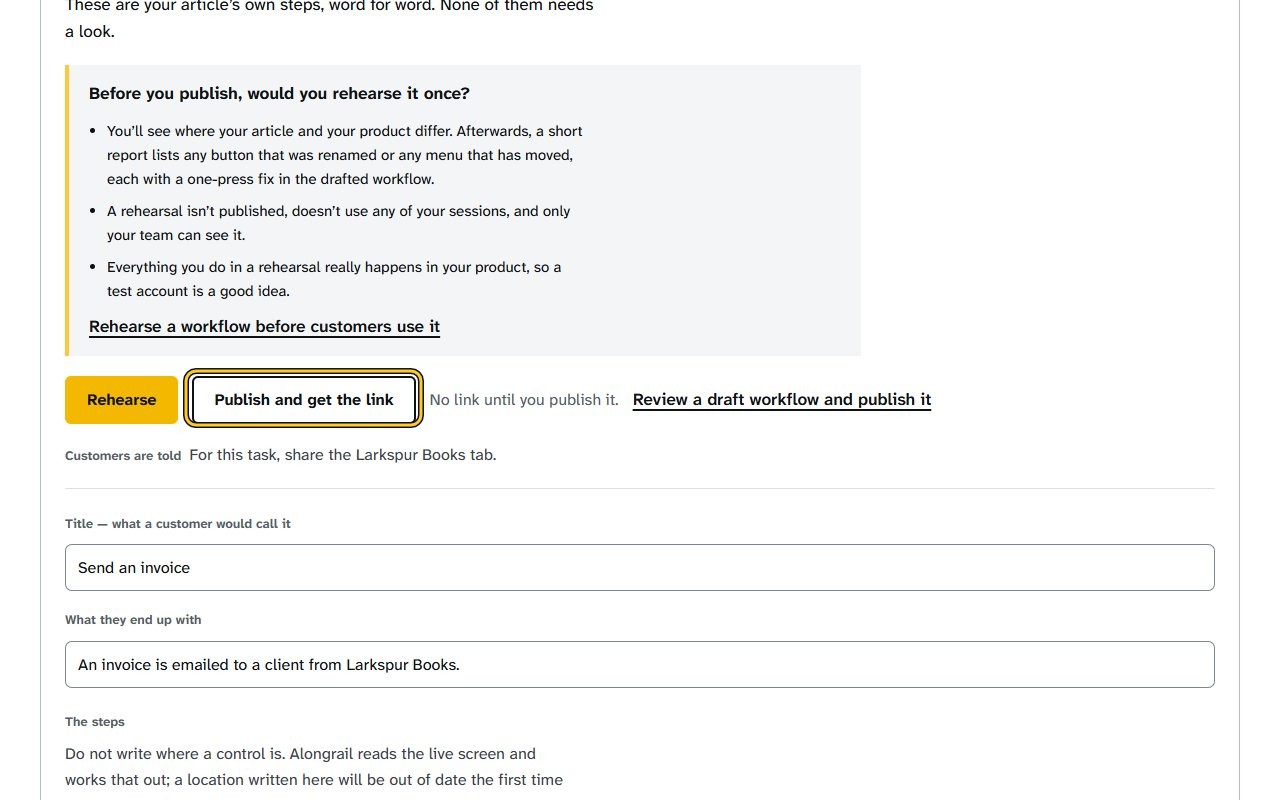
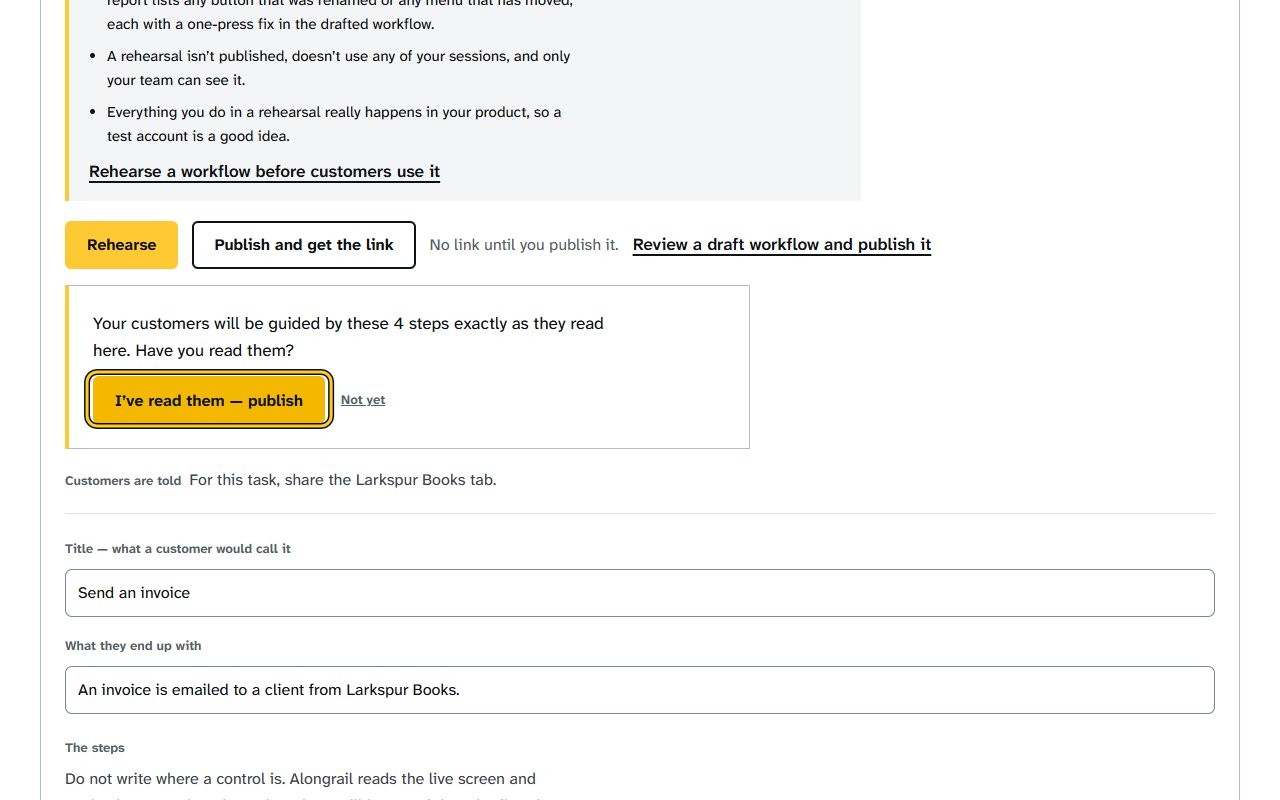
Click “Publish and get the link”; a box asks whether you have read the workflow’s steps.
Click “I’ve read them — publish”; the workflow shows a link to send and options to rehearse, copy the link, or unpublish.
If your screen looks different
Screens change from time to time, and yours may not match these pictures exactly.
Would you like to be walked through this on your own screen? You’ll be guided one step at a time, and you do every click yourself.
It needs Chrome or Edge on a computer.
This guided help needs a computer. You’re welcome to open this page on one.
Related
Write to us
If something here doesn’t match what you see, please write to hello@alongrail.com. A person reads every message.