Alongrail Desk · Help articles
Do the task once. Get the finished help article, with a screenshot of every step, ready to download as HTML, PDF or a zip.
You press Capture step at the start of each step while you work. Desk writes the instruction for each step, adds its screenshot with the place to click highlighted, and suggests covers for names, email addresses and anything that looks like a secret.
You can change any words, or ask for changes in your own words. Then you download it as one HTML file, a PDF or a zip, copy it as HTML or Markdown, or make it into a guided session: one press makes the workflow, and you publish it.
2 help articles free in a 14-day trial, no card. Nothing to install: Chrome or Edge on a computer.
A good help article takes an afternoon. With Desk, it takes doing the task once.
Writing a help article means doing the task, taking a screenshot at every step, cropping each one, covering anything private, and writing what to click. Then a button moves, and the screenshots are out of date.
With Desk you do the task once, the way you’d do it anyway. Desk does the writing and the screenshots. What that gives your team:
- Time back. No screenshots to take, crop and cover by hand.
- Help articles that all look the same. Numbered steps, a screenshot for each, and the place to click highlighted.
- Anyone who knows the task can write one, not only a writer. They do it once, and Desk does the writing.
- You can cover private details before anything is kept.
- A help centre that keeps up. When your product changes, you refresh the help article and Desk lists what changed, instead of you rewriting it.
- One help article, two uses. Customers can read it, or press Walk me through it and follow it on their own screen.
- Fewer “how do I…?” questions. A clear help article with current screenshots answers many questions before they reach your team.
Two ways in
- Write a new help article. Name the task, share the window where you use your product, and capture each step as you do it.
- Refresh a help article you already have. Paste it, link to it or upload it. Desk shows you the steps it found. You capture each one again on your product as it is now, and Desk lists what changed.
How it works
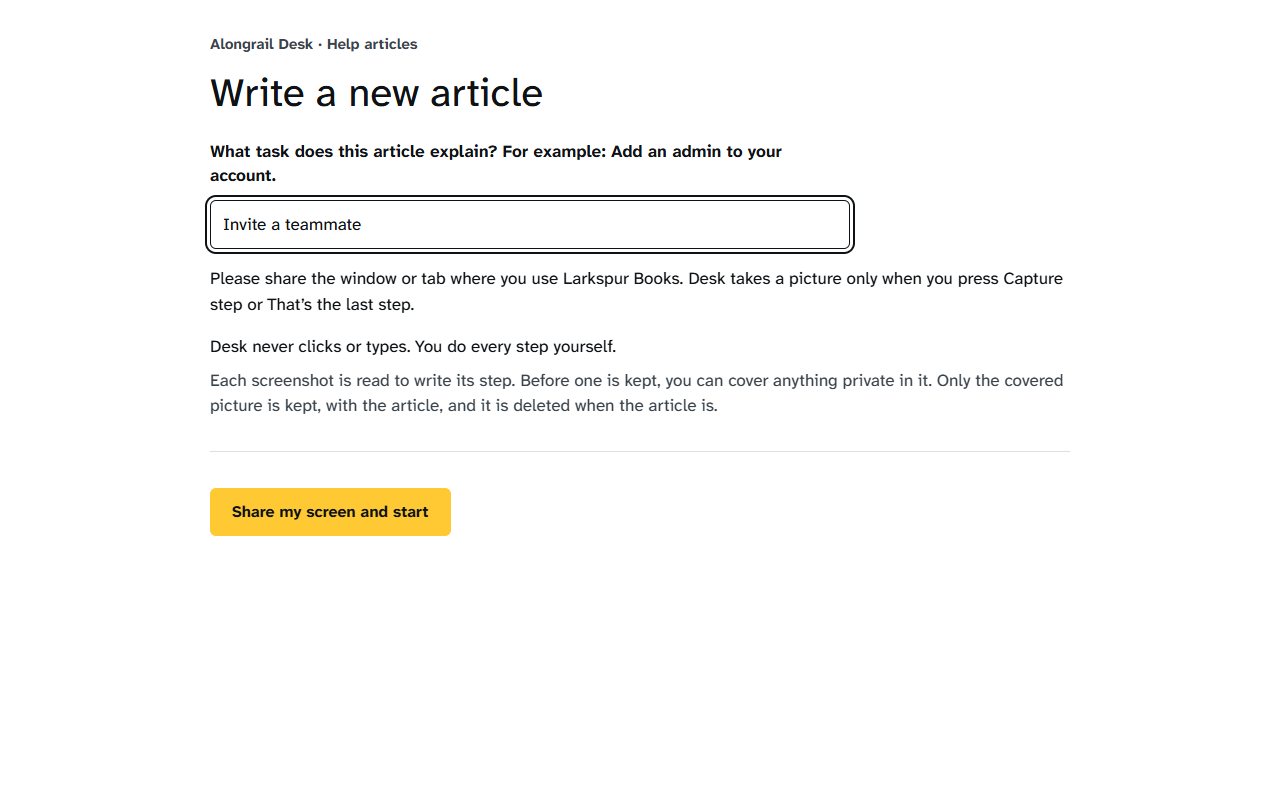
Name the task
For example: “Invite a teammate”. Then please press Share my screen and start.
Capture each step as you do it
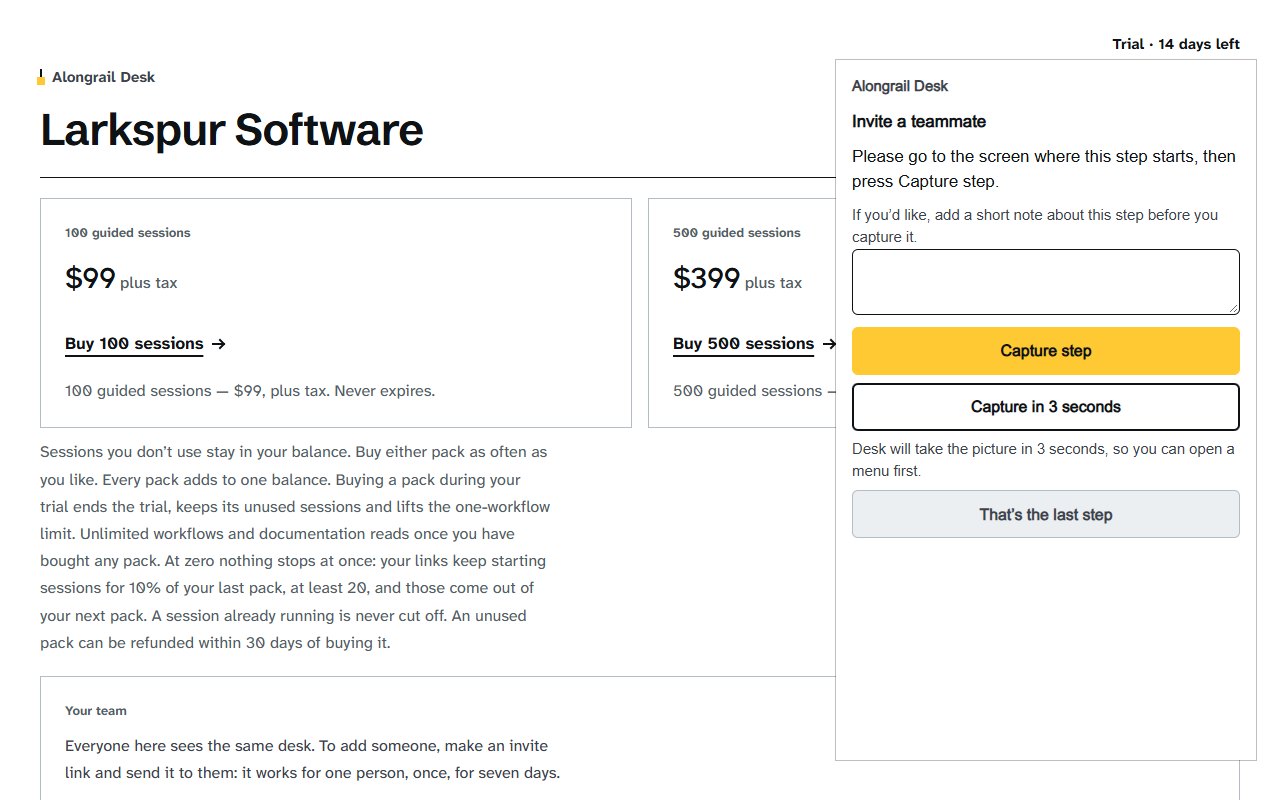
Please share the tab or window where you use your product. A small steps window stays beside it. At the start of each step, press Capture step, then do the step. For a menu that closes when you click away, press Capture in 3 seconds and open the menu. At the end, press That’s the last step.
Desk writes each step
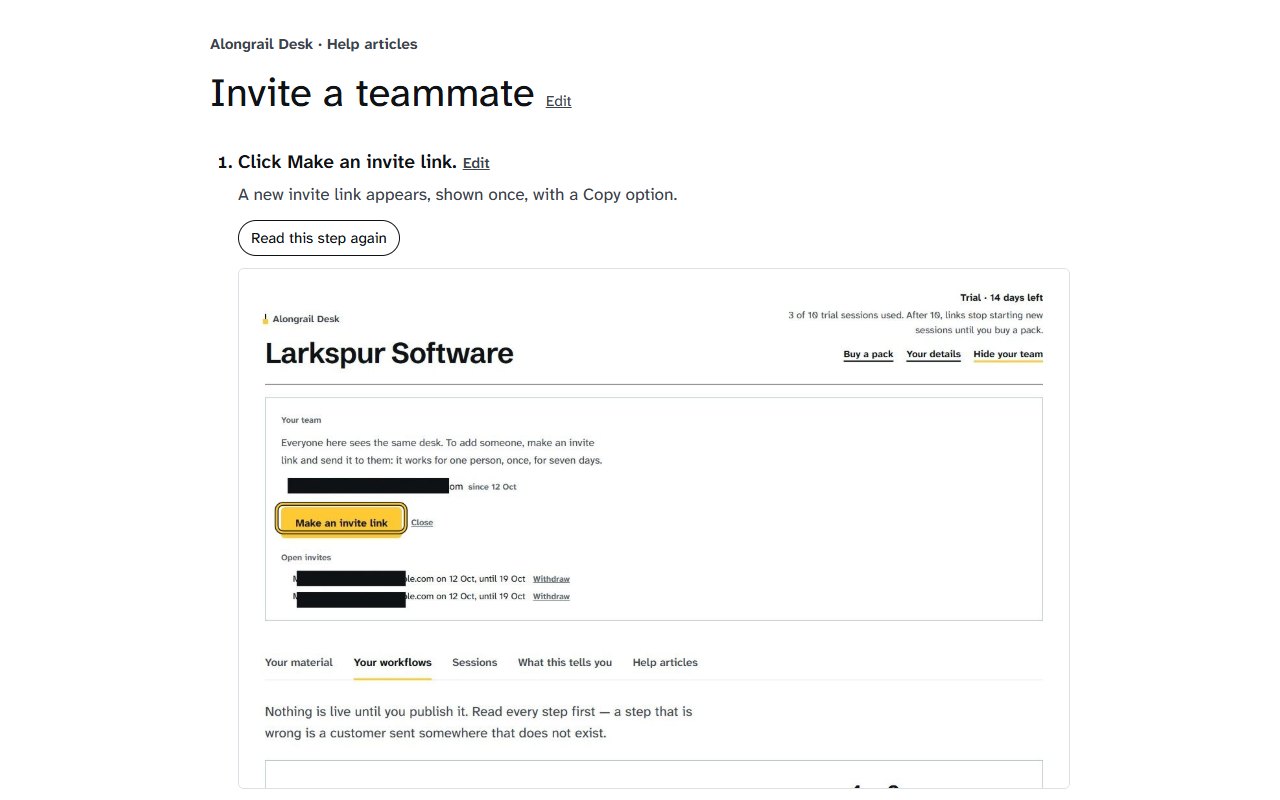
From the screen before and after each step, Desk writes what to press, as it reads on your screen, and what shows once it’s done. When it can’t tell what you pressed, it asks you rather than guessing. You can also write a short note for a step before you capture it, in your own words, and Desk uses it for that step.
Cover anything private
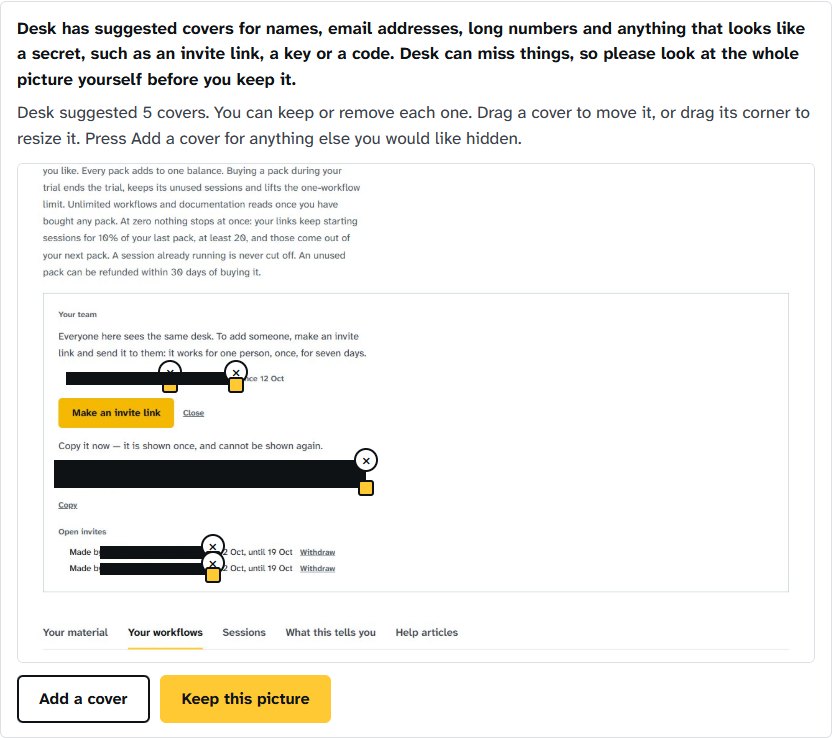
Before a picture is kept, Desk suggests covers for names, email addresses, long numbers and anything that looks like a secret. Please check each picture: you can move, resize, add or remove covers.
Finish, and read it through
Desk writes the title and a one-line introduction. You can change any words, move a highlight, or choose a close-up or the whole screen.
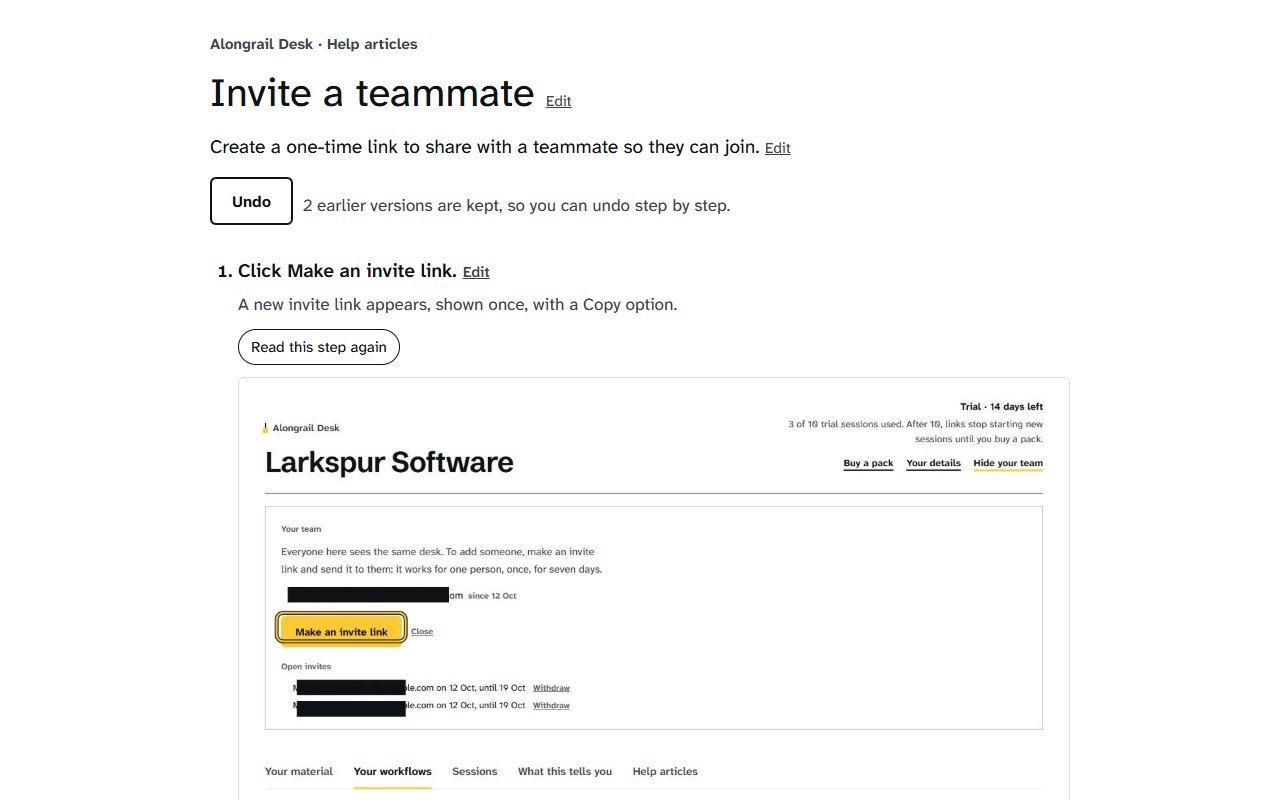
A real help article, made this way
Our own help centre’s step-by-step help articles were written with Desk, on the screens of a made-up demo company. Here is one, as published: “Review a draft workflow and publish it”. Five steps, each with its screenshot.
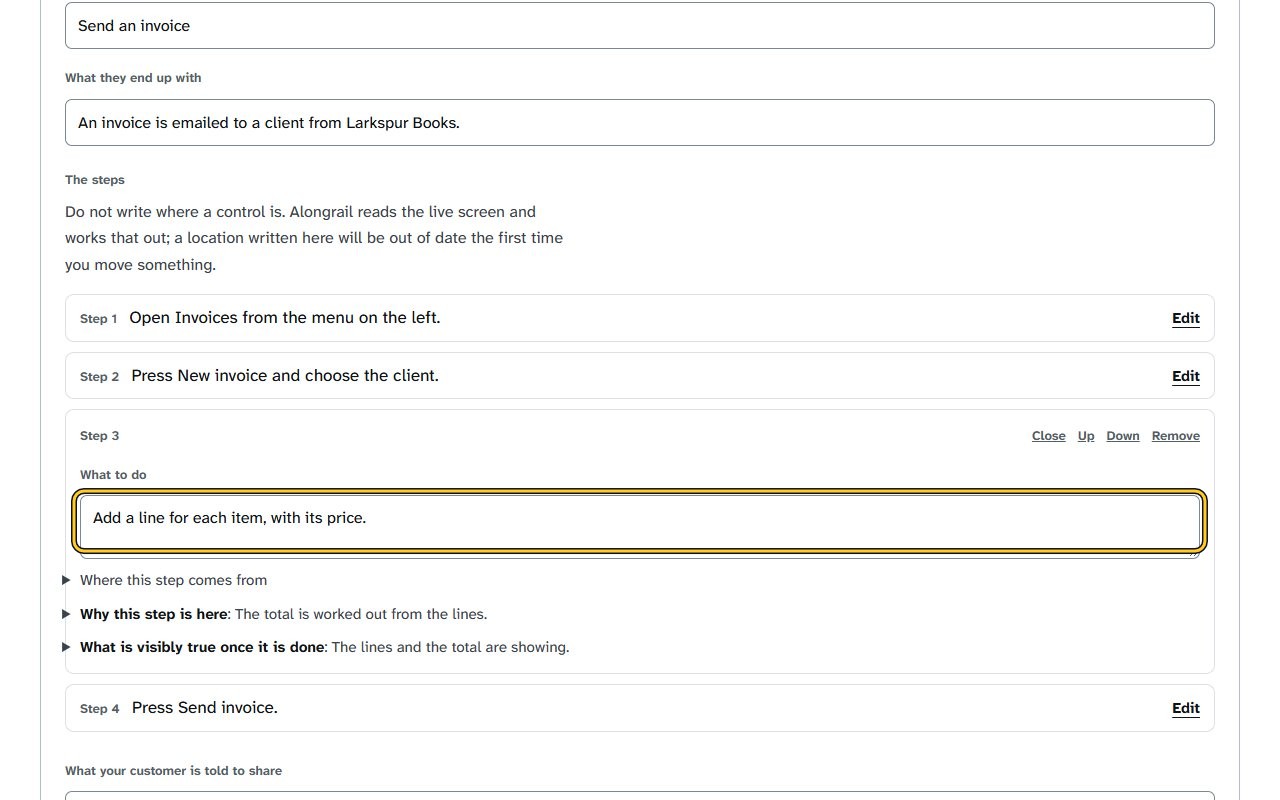
What you can do with a help article
- Change it in your own words. You can edit any text directly, or ask for a change in a sentence, for example “show step 4 as the whole screen”. You see what would change before anything does.
- Adjust the pictures. You can move a highlight, or show a close-up or the whole screen.
- Undo. Every change can be undone, one at a time.
- Download it, or copy it. Download it as one HTML file with its pictures inside, save it as a PDF, or download a zip with everything. Or copy it as HTML or as Markdown, to paste into your help centre.
- Turn it into a guided session. One press makes a workflow from the help article: the steps Desk will guide a customer through, with its link. Once you publish it, every download of the help article carries a Walk me through it button, and Desk gives you a ready reply with the link to paste into your help desk. Making it is free; each customer’s guided session uses 1.
Putting it in your help centre
Desk doesn’t connect directly to Zendesk, Intercom, Freshdesk or other help desks yet. Please download the help article in the format your help centre takes, or copy its text, and paste it in. HTML and Markdown keep the steps and pictures in order.
Only what you capture
- A picture is taken only when you press a capture button. Capture step, Capture in 3 seconds or That’s the last step, and at no other time. There is no recording.
- You decide what’s kept. Desk suggests covers; you check each picture before keeping it.
- Desk never clicks or types. You do every step in your product yourself.
- Your help articles stay on your desk. The people on your desk can see them. Anyone else sees one only when you publish it yourself: by downloading it, or by turning on its embed and putting it on your website, where anyone who can see that page can read it.
Pricing
Each new help article, or each refresh of one you already have, uses 1 from the same balance as guided sessions. It’s counted the first time you press Finish the article. Changing the words, reading a step again, downloads and undo are free.
The free trial includes 2 help articles alongside its 10 guided sessions, for 14 days, with no card. Help articles the trial didn’t use carry into your first pack. Packs are 100 for $99, or 500 for $399, plus tax, and never expire.
Who it’s for
Software teams writing help for their customers
Help articles for your help centre, made from your product as it is today. Fewer “how do I…?” questions reach your support inbox.
Teams documenting software for their own staff
Step-by-step help articles for the tools your team uses at work. New staff learn the tools without pulling a colleague away from their work.
Businesses whose partners, suppliers or clients work in their dashboard
Help articles for the people outside your company who use it. They get through your dashboard on their own, with fewer calls to your team.
Questions
What do I need?
Chrome or Edge on a computer, and a Desk account. Nothing to install.
Is my screen recorded?
No. A picture is taken only when you press a capture button, and you check and cover each one before it’s kept.
What if Desk can’t tell what I pressed?
It asks you, and uses your answer. It doesn’t guess.
Can I change a picture once it’s kept?
You can add covers, move its highlight, and add arrows or boxes at any time. To take a picture again, please press Take this picture again on that step. If the article is on your website, the old picture stops being served there within 10 minutes.
What happens to a help article I never finish?
It isn’t counted. You can delete it at any time, and its pictures go with it.
Does Alongrail do the task for me?
No. You do each step in your own product. Desk only writes down what you did.
Please try it with the task your customers ask about most
2 help articles free in a 14-day trial, no card.