Confirm your work email
Confirm an address at your company, so your workflows can be published.
Would you like to be walked through this on your own screen? You’ll be guided one step at a time, and you do every click yourself.
It needs Chrome or Edge on a computer.
This guided help needs a computer. You’re welcome to open this page on one.
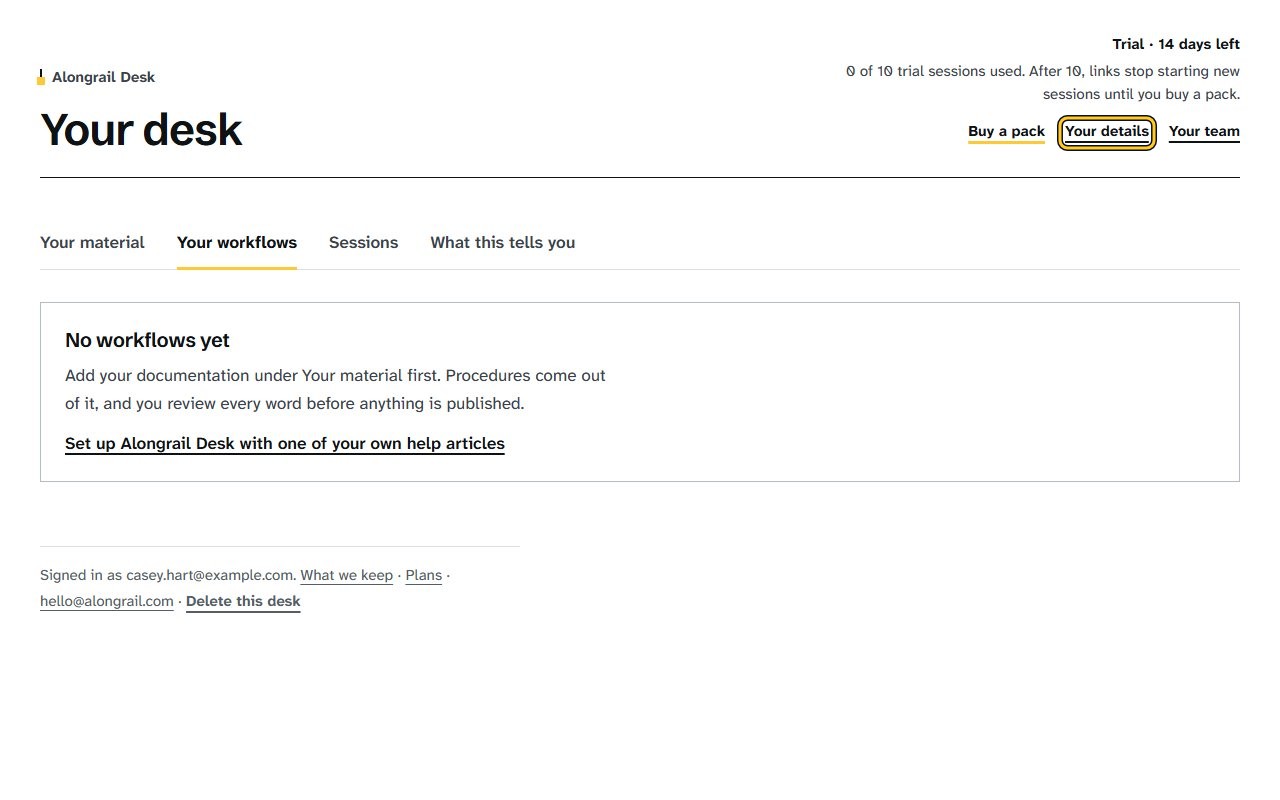
Click “Your details” at the top right.
Your details panel opens, showing your name, work email and organisation fields.
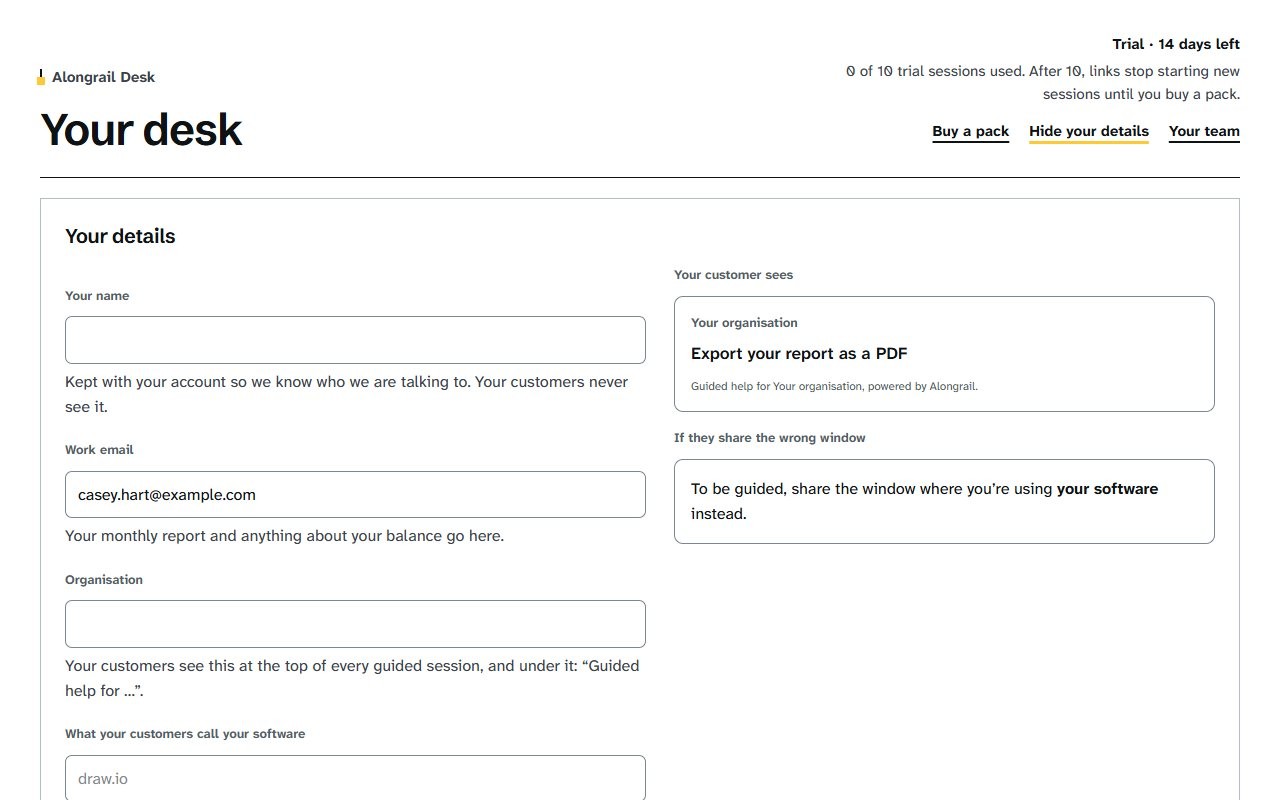
Fill in your name, work email, organisation, and what your customers call your software.
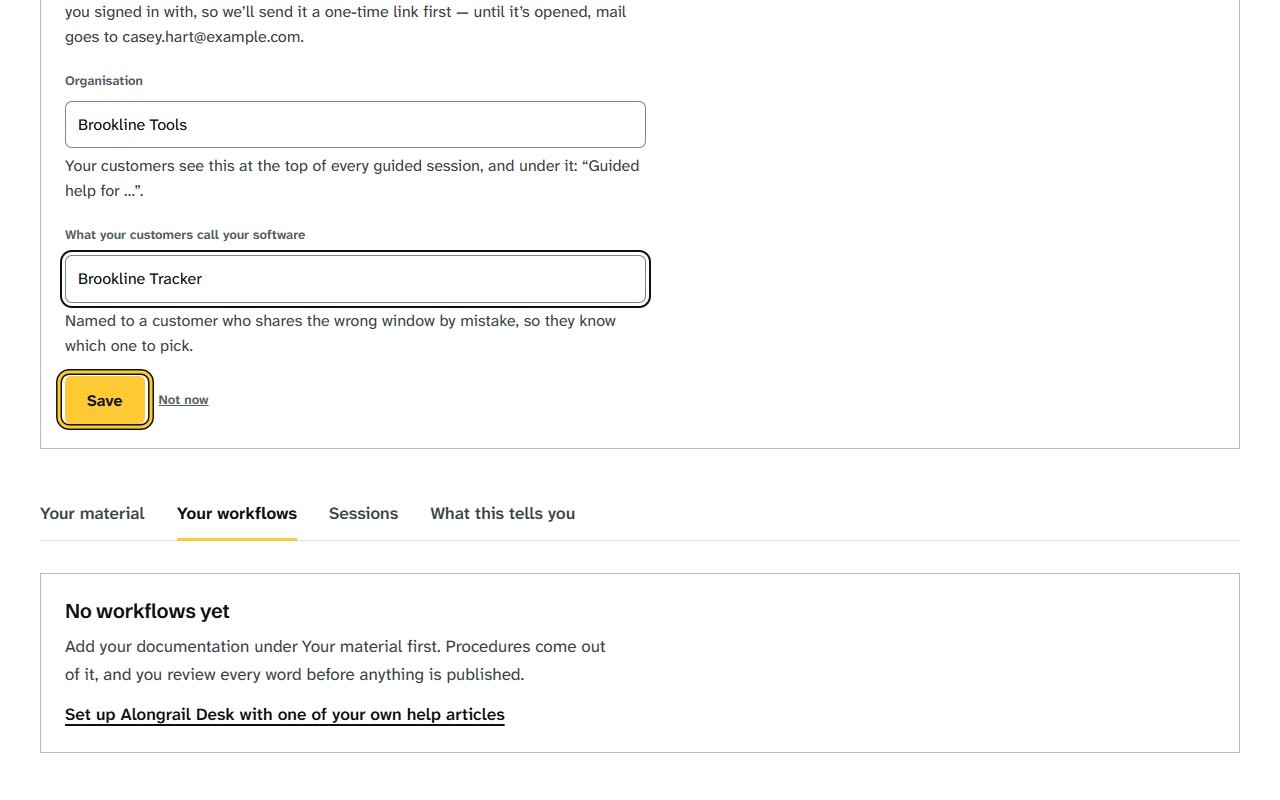
Click Save under Your details. We send a one-time link to your work email, and a note at the top of your desk says so.
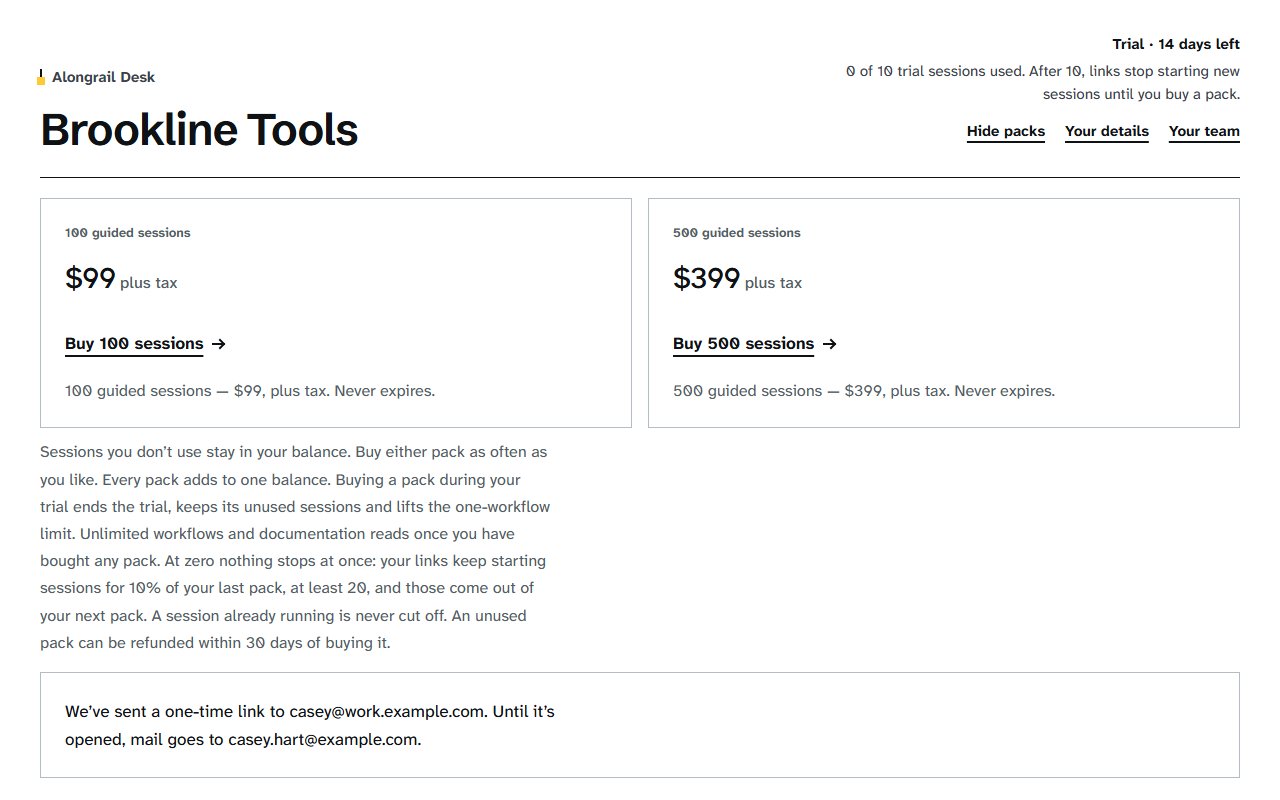
Open the one-time link in the email we sent to your work address. Your desk opens with a note that the address is confirmed.
If your screen looks different
Screens change from time to time, and yours may not match these pictures exactly.
Would you like to be walked through this on your own screen? You’ll be guided one step at a time, and you do every click yourself.
It needs Chrome or Edge on a computer.
This guided help needs a computer. You’re welcome to open this page on one.
Related
Write to us
If something here doesn’t match what you see, please write to hello@alongrail.com. A person reads every message.