Get ready for session 1
Check your course files and your screen sharing before session 1.
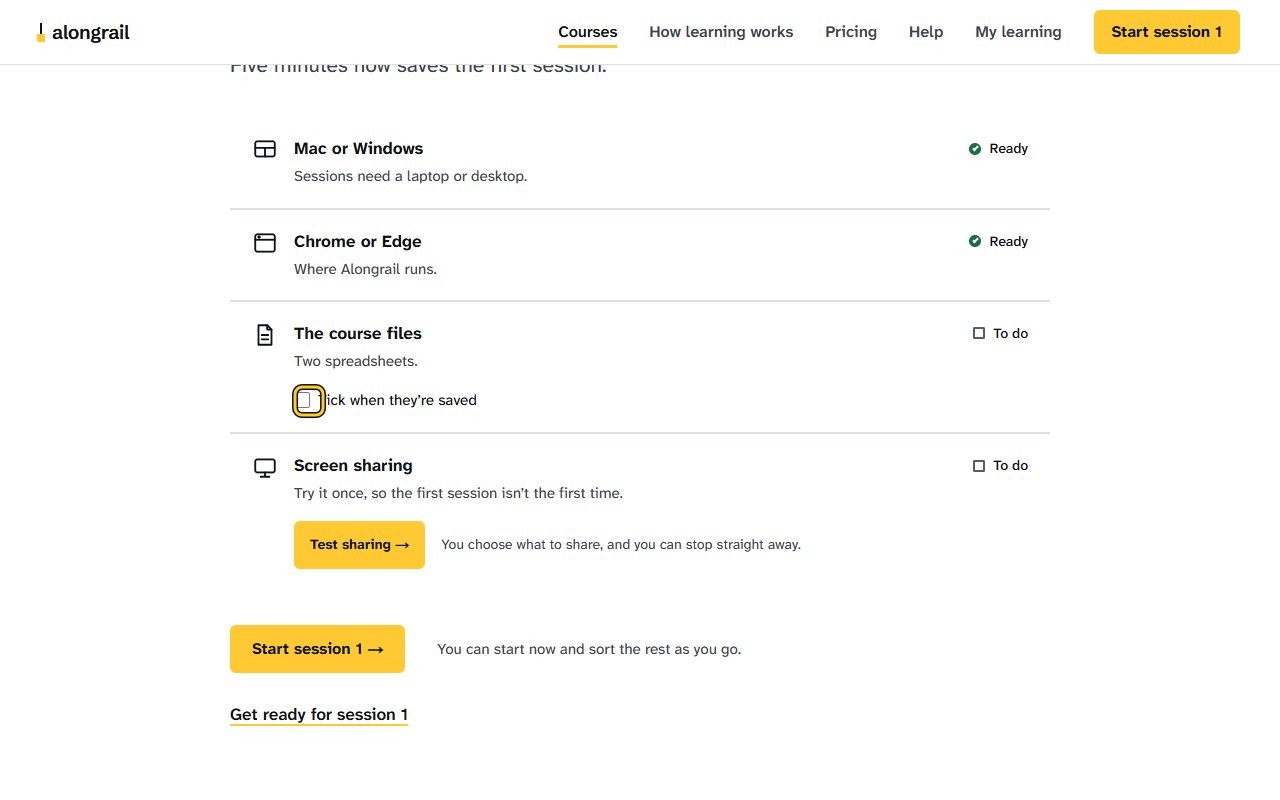
Tick the checkbox beside “Tick when they’re saved” under The course files; the course files status changes to Ready.
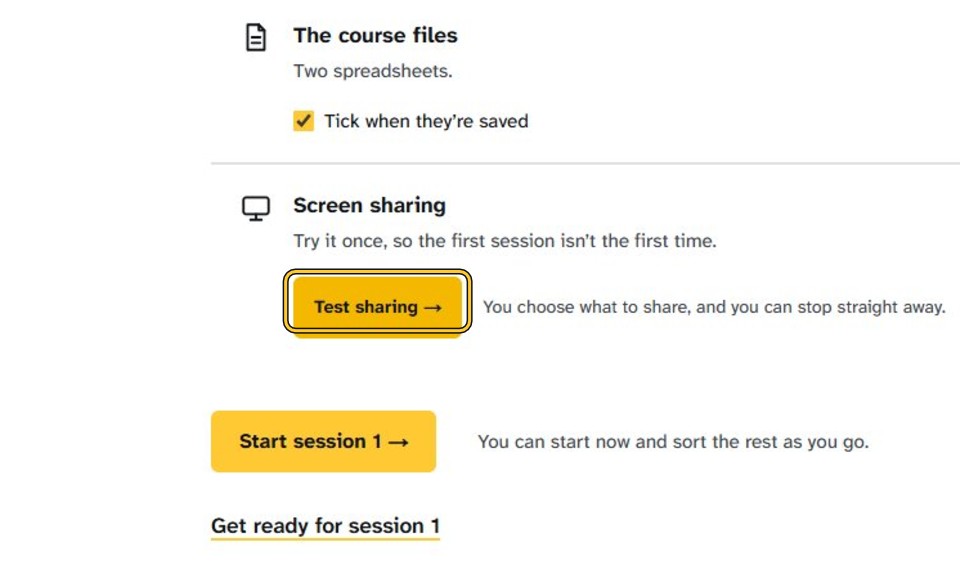
Click “Test sharing” under Screen sharing; the button now reads “Test again” and Screen sharing shows Ready.
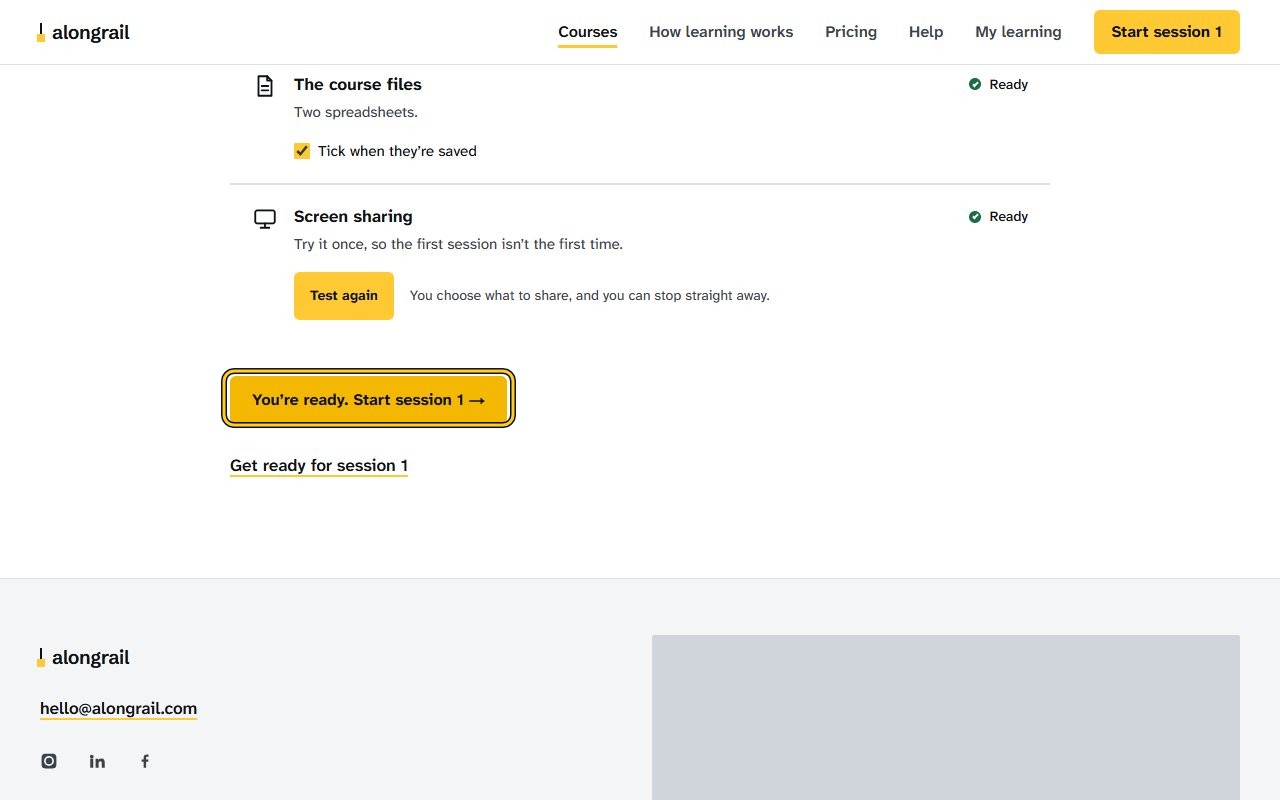
Click “You’re ready. Start session 1”; the page for session 1 opens.
If your screen looks different
Screens change from time to time, and yours may not match these pictures exactly.
Write to us
If something here doesn’t match what you see, please write to hello@alongrail.com. A person reads every message.