Write a help article from your own screen
Share your screen so Desk captures each step as you do it and turns it into a finished article.
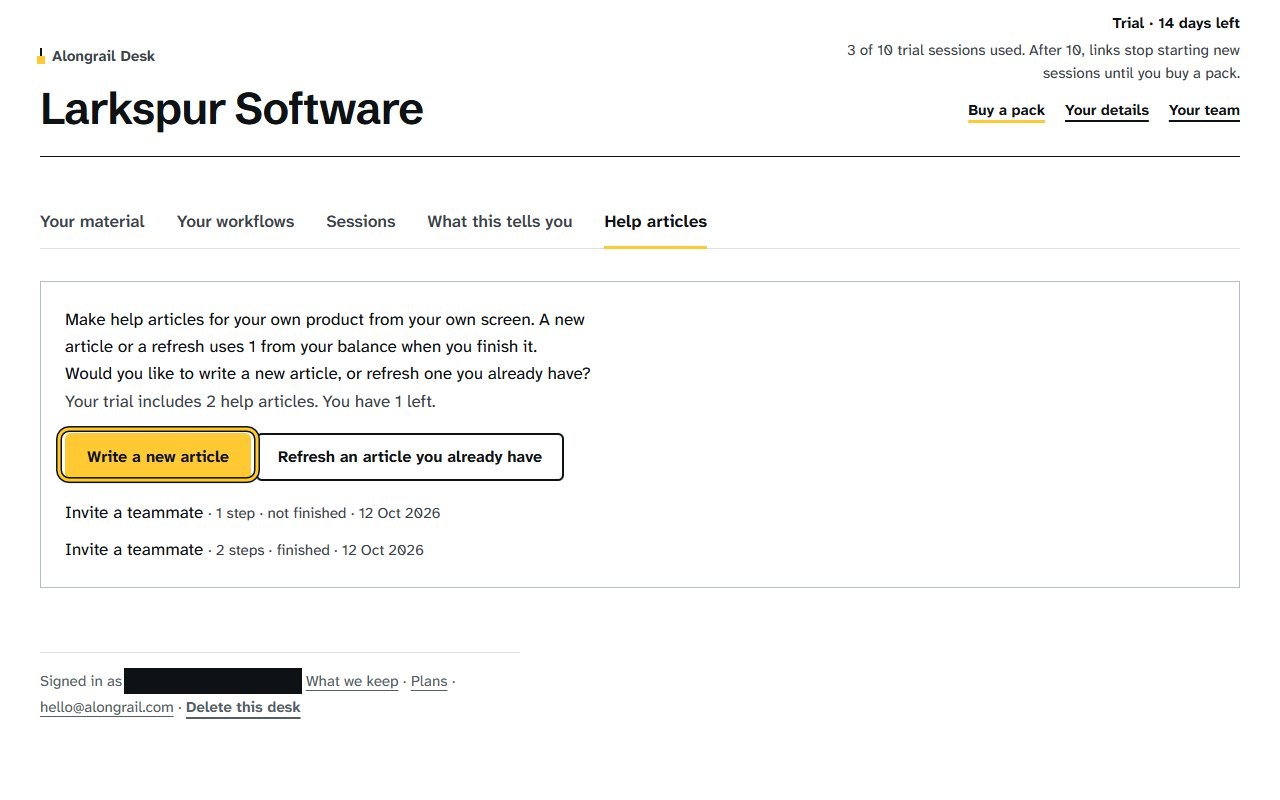
On your dashboard’s Help articles tab, click Write a new article.
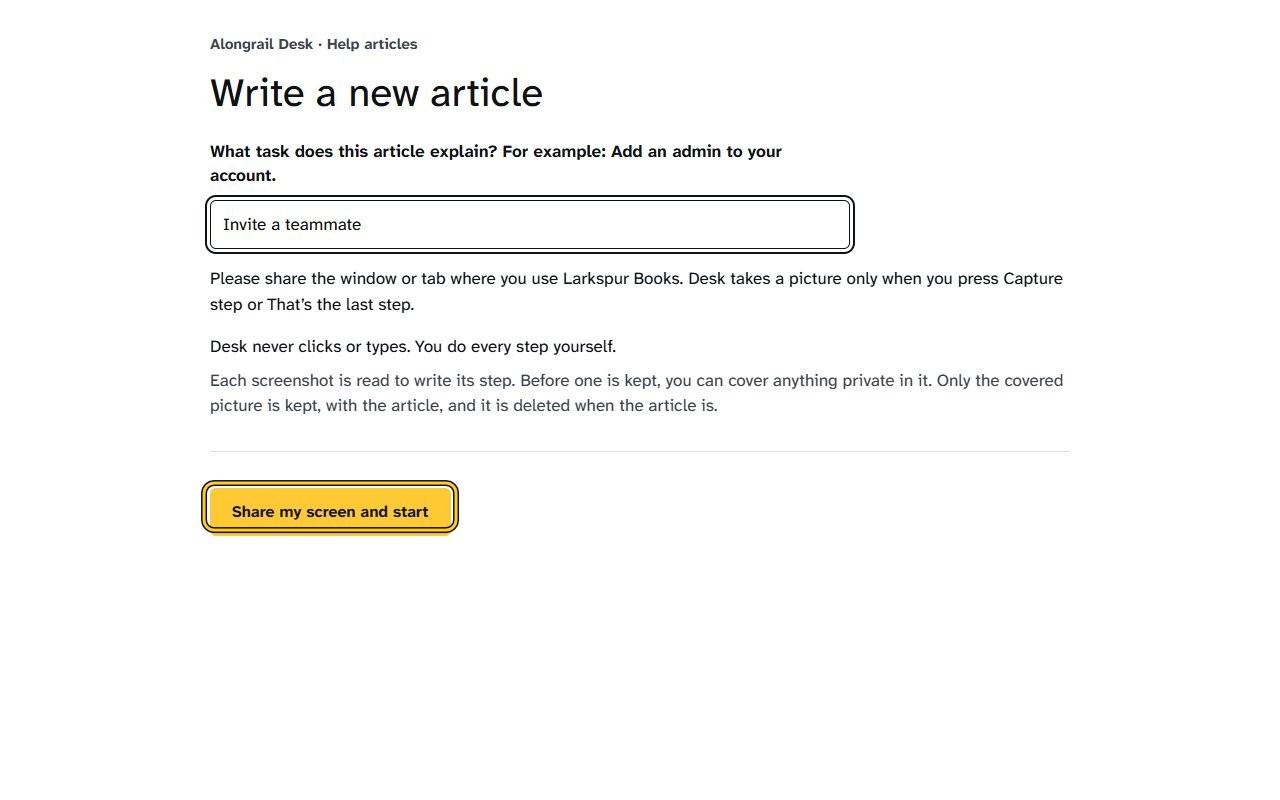
A page asking what task the article explains, with a text field and a Share my screen and start button.
Write the task the article explains, then click Share my screen and start.
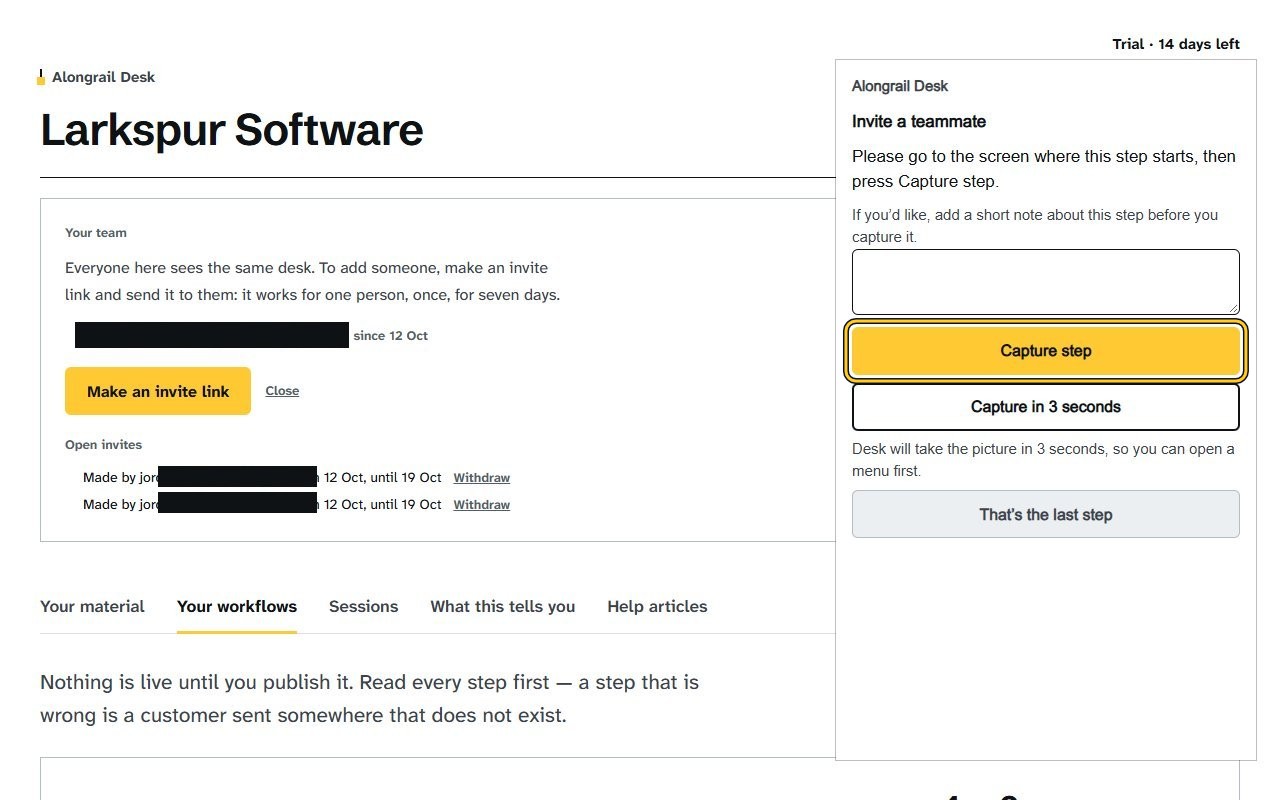
The steps window opens beside the screen you share.
At the start of each step, click Capture step in the steps window, then do the step yourself.
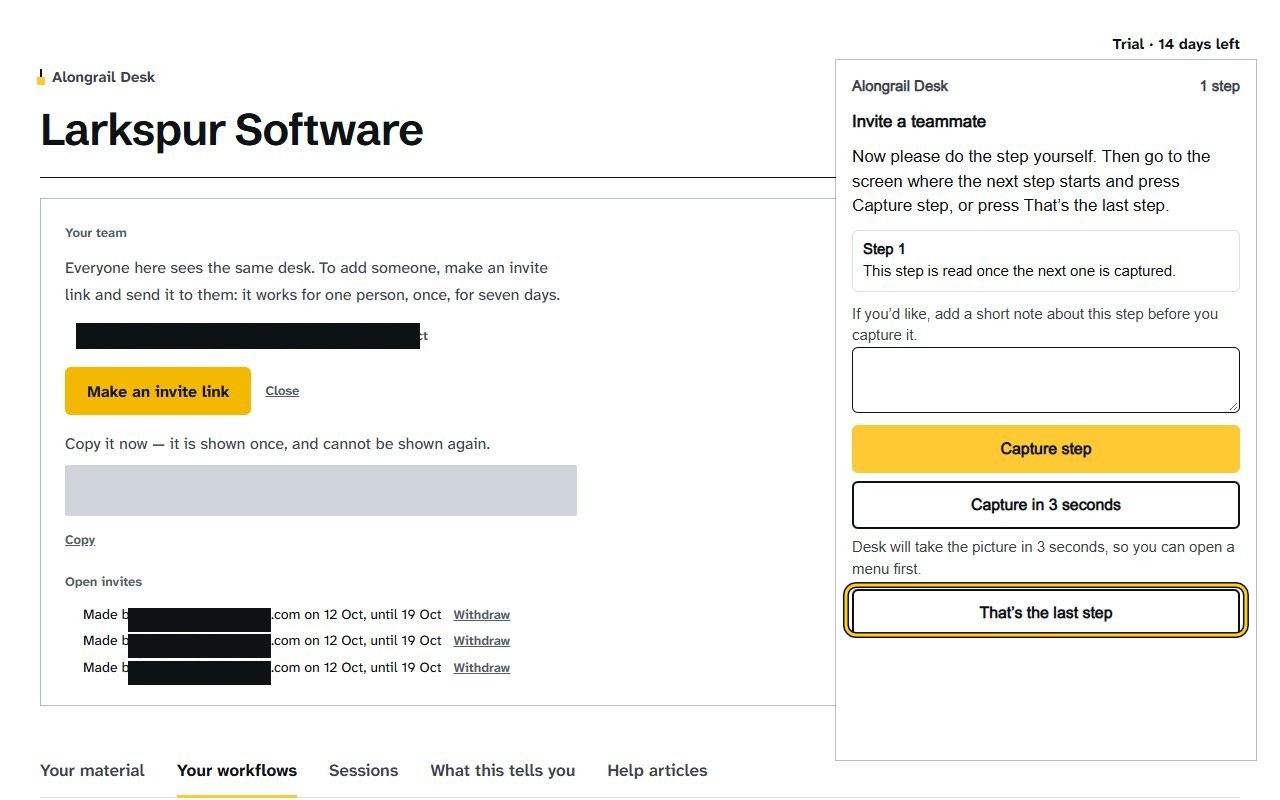
Each step is written once you capture the next one.
Click That’s the last step in the steps window.
The article opens, with each step you captured and its picture.
Look at the whole picture, keep or remove each cover Desk suggests, add any you need, then click Keep this picture.
The picture is kept with its covers.
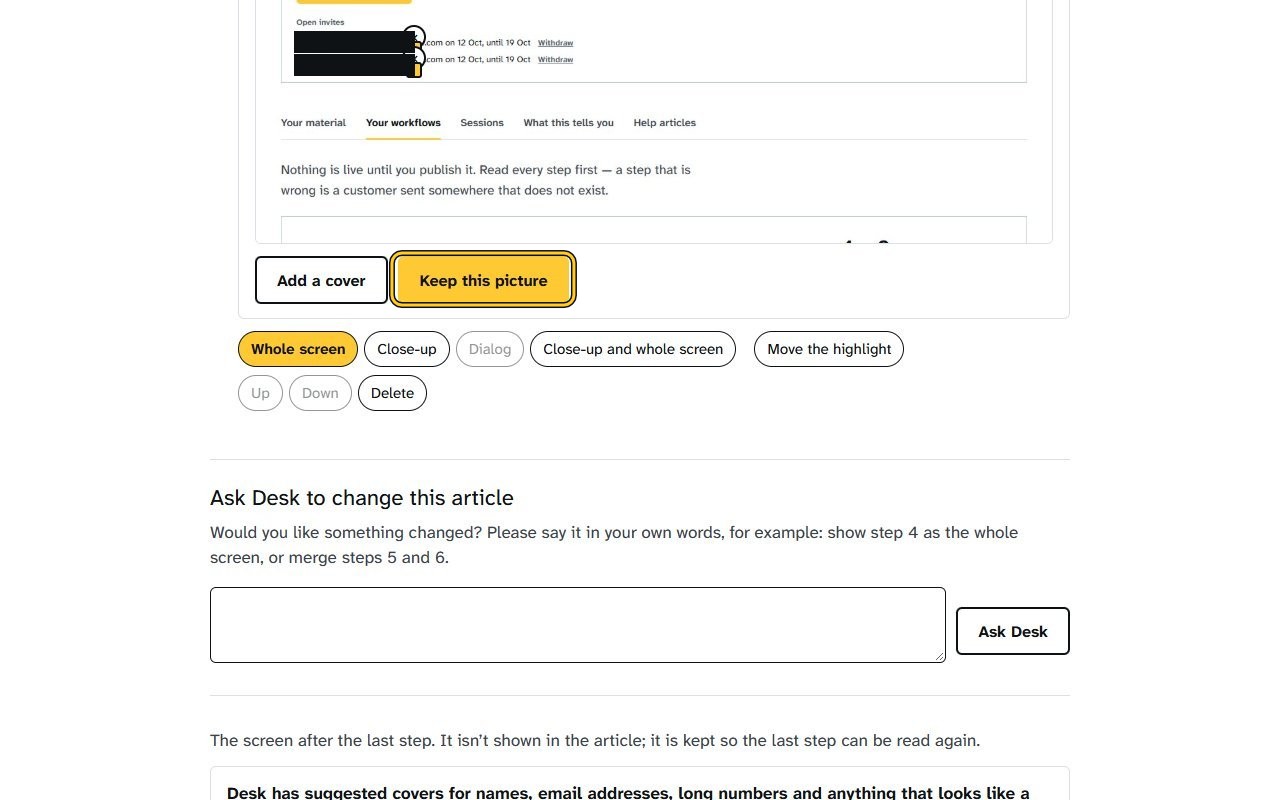
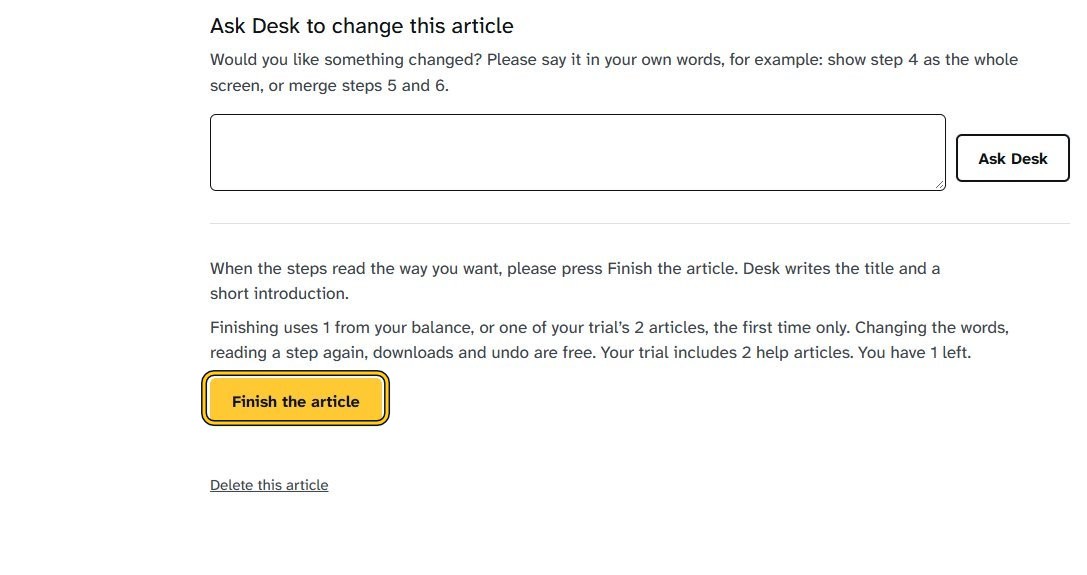
Click Finish the article.
Download and share options appear, including Copy as HTML and Save as PDF.
If your screen looks different
Screens change from time to time, and yours may not match these pictures exactly.
Write to us
If something here doesn’t match what you see, please write to hello@alongrail.com. A person reads every message.