Use your rehearsal report
Settle what a rehearsal found: use the screen’s wording, keep your own, or accept the suggested results.
Would you like to be walked through this on your own screen? You’ll be guided one step at a time, and you do every click yourself.
It needs Chrome or Edge on a computer.
This guided help needs a computer. You’re welcome to open this page on one.
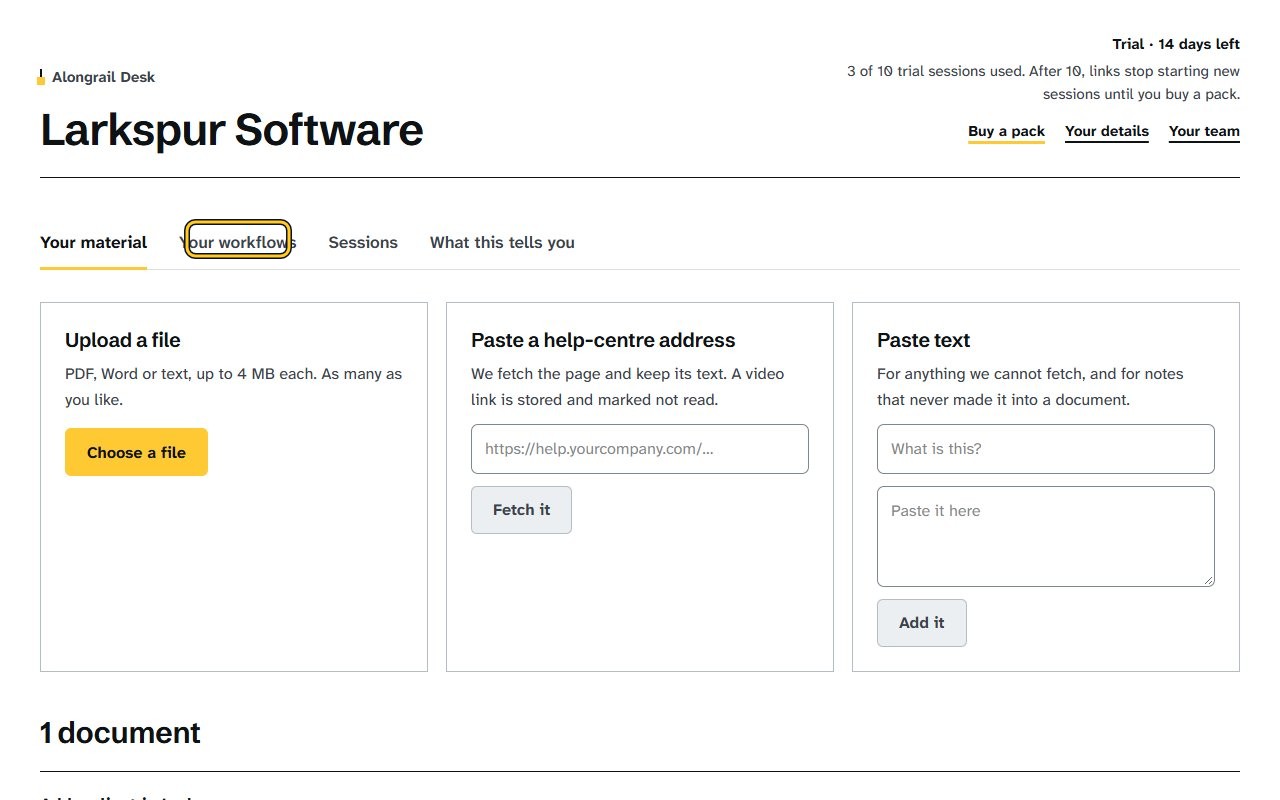
Click the “Your workflows” tab, where a rehearsal report appears, showing steps with suggested wording changes.
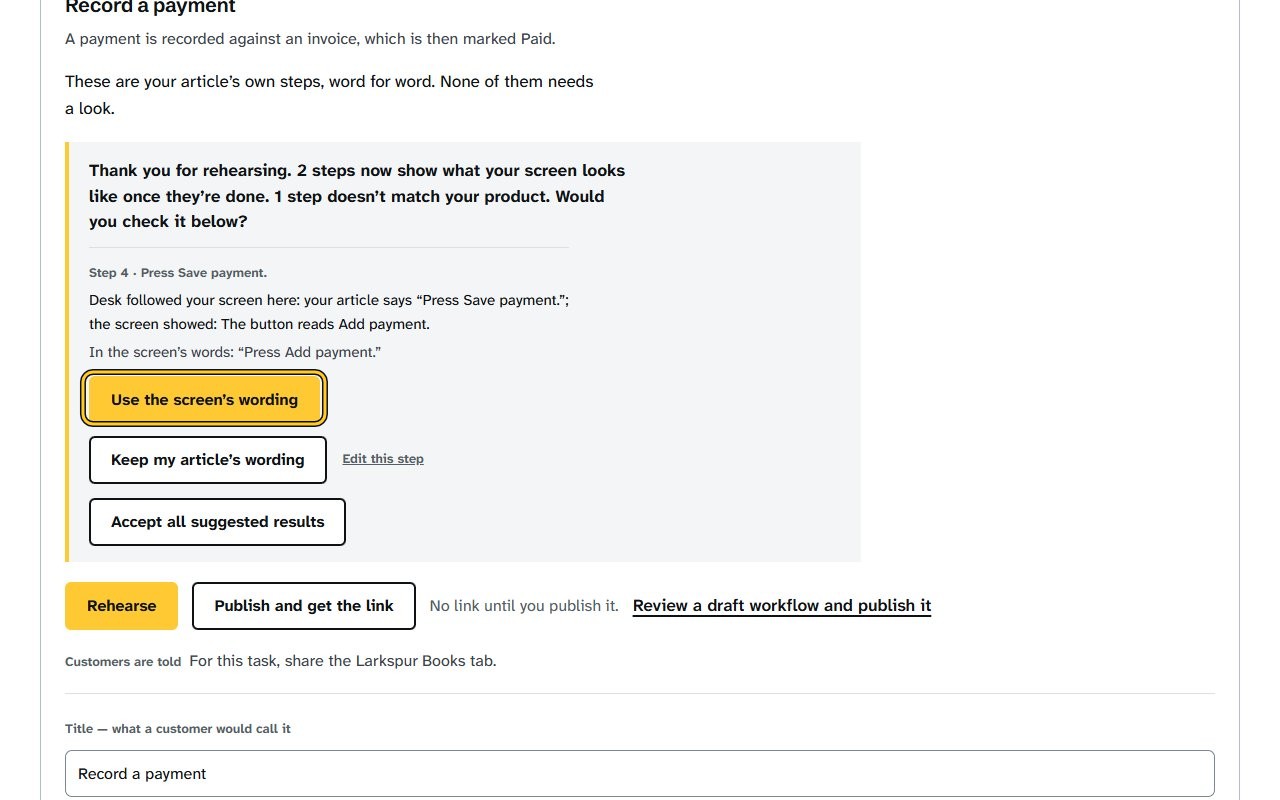
Under a step where your article and the screen differ, click “Use the screen’s wording”; the step now uses the screen’s own name for the control, and the report says “Changed to the screen’s wording.” To keep your own words instead, click “Keep my article’s wording”.
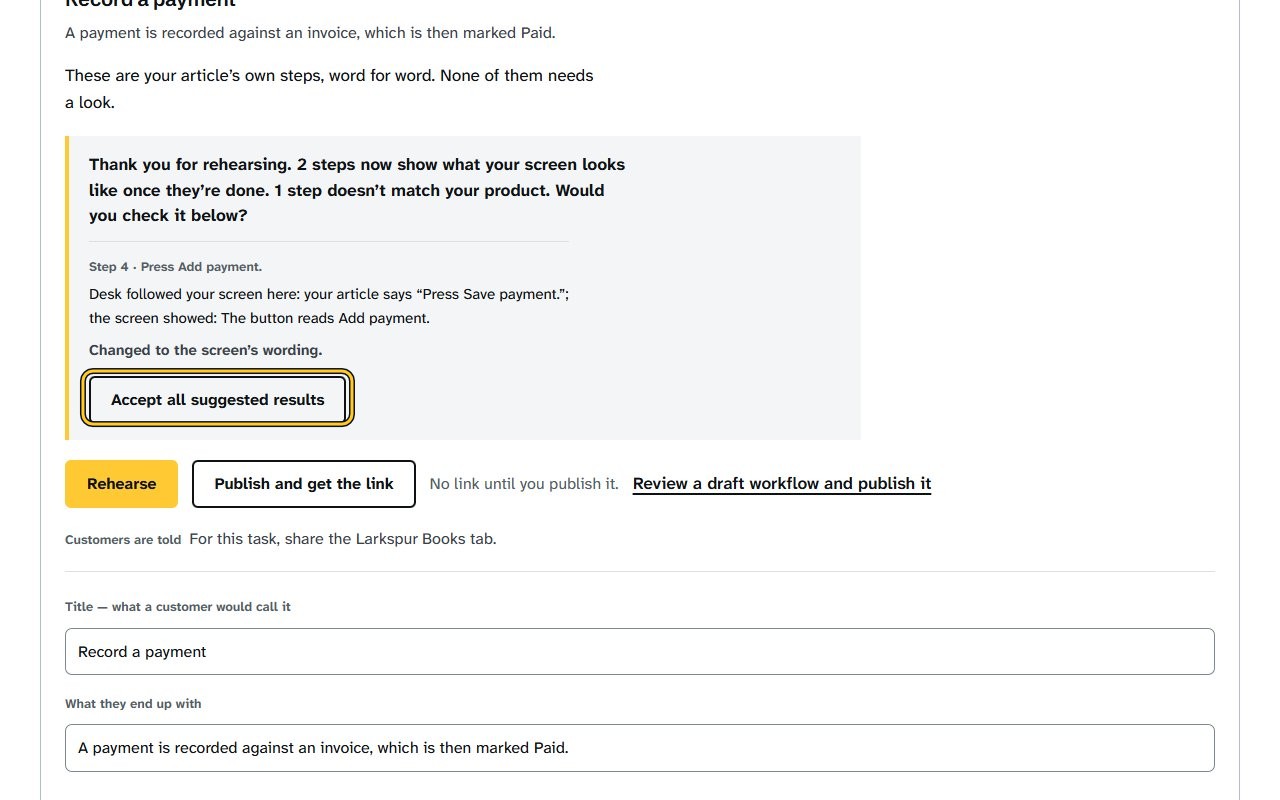
Click “Accept all suggested results”. The results your rehearsal saw are written into the steps, as what shows once each step is done.
If your screen looks different
Screens change from time to time, and yours may not match these pictures exactly.
Would you like to be walked through this on your own screen? You’ll be guided one step at a time, and you do every click yourself.
It needs Chrome or Edge on a computer.
This guided help needs a computer. You’re welcome to open this page on one.
Write to us
If something here doesn’t match what you see, please write to hello@alongrail.com. A person reads every message.