Turning a document into workflows: what to expect
What happens when you press “Create workflows from this”, and how long the reading takes.
Would you like to be walked through this on your own screen? You’ll be guided one step at a time, and you do every click yourself.
It needs Chrome or Edge on a computer.
This guided help needs a computer. You’re welcome to open this page on one.
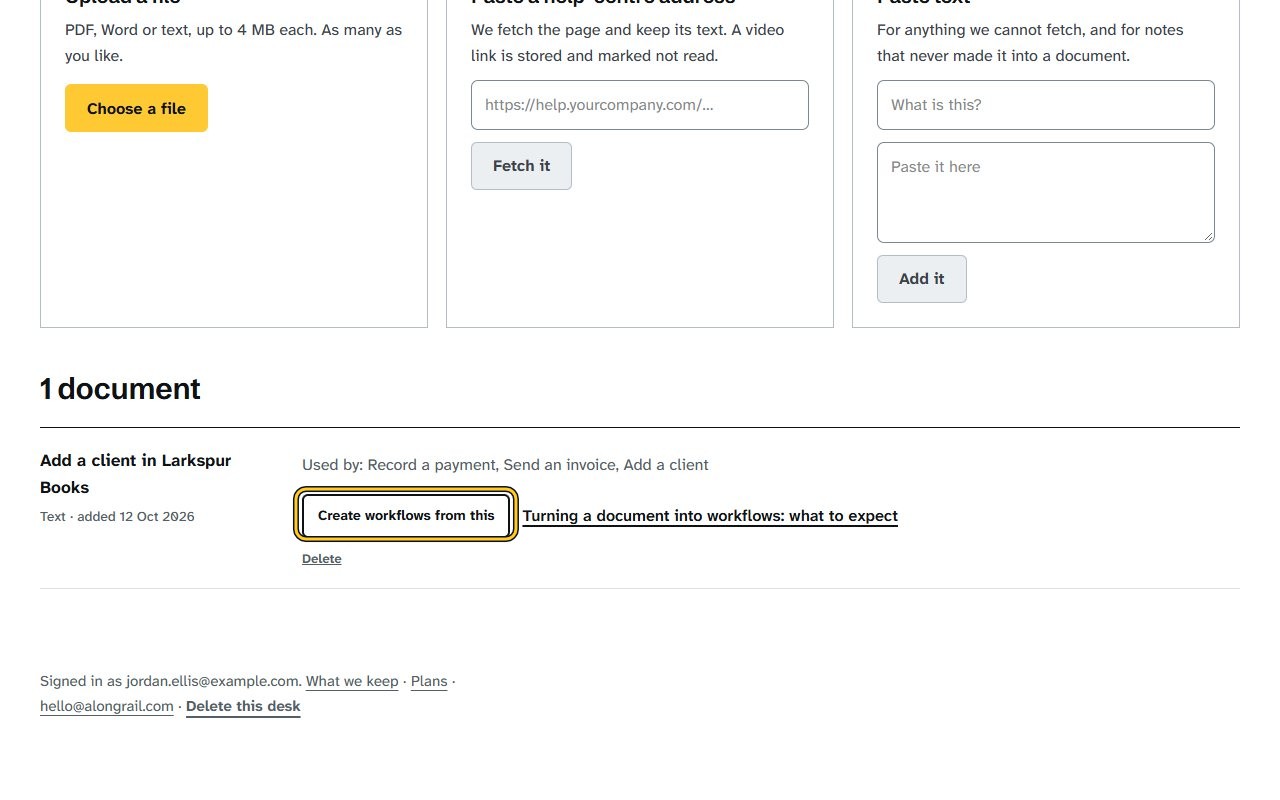
Click “Create workflows from this” under the document. If drafts already came from it, Desk first asks whether to replace them or keep them.
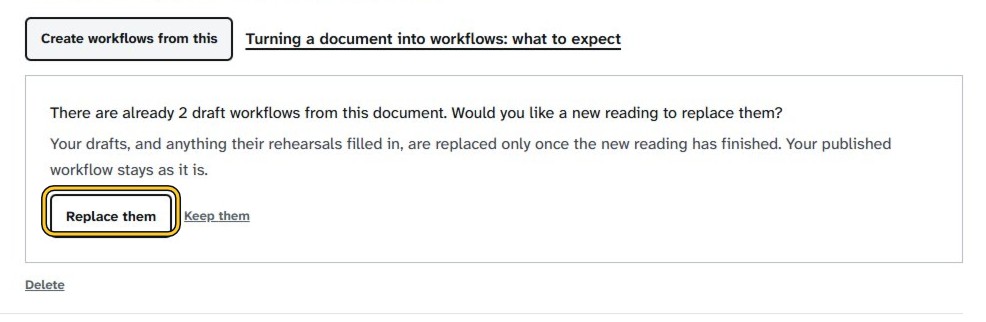
Click “Replace them” to read the document again, then wait a minute or two while Desk reads it. A note says your drafts are ready to review under Your workflows.
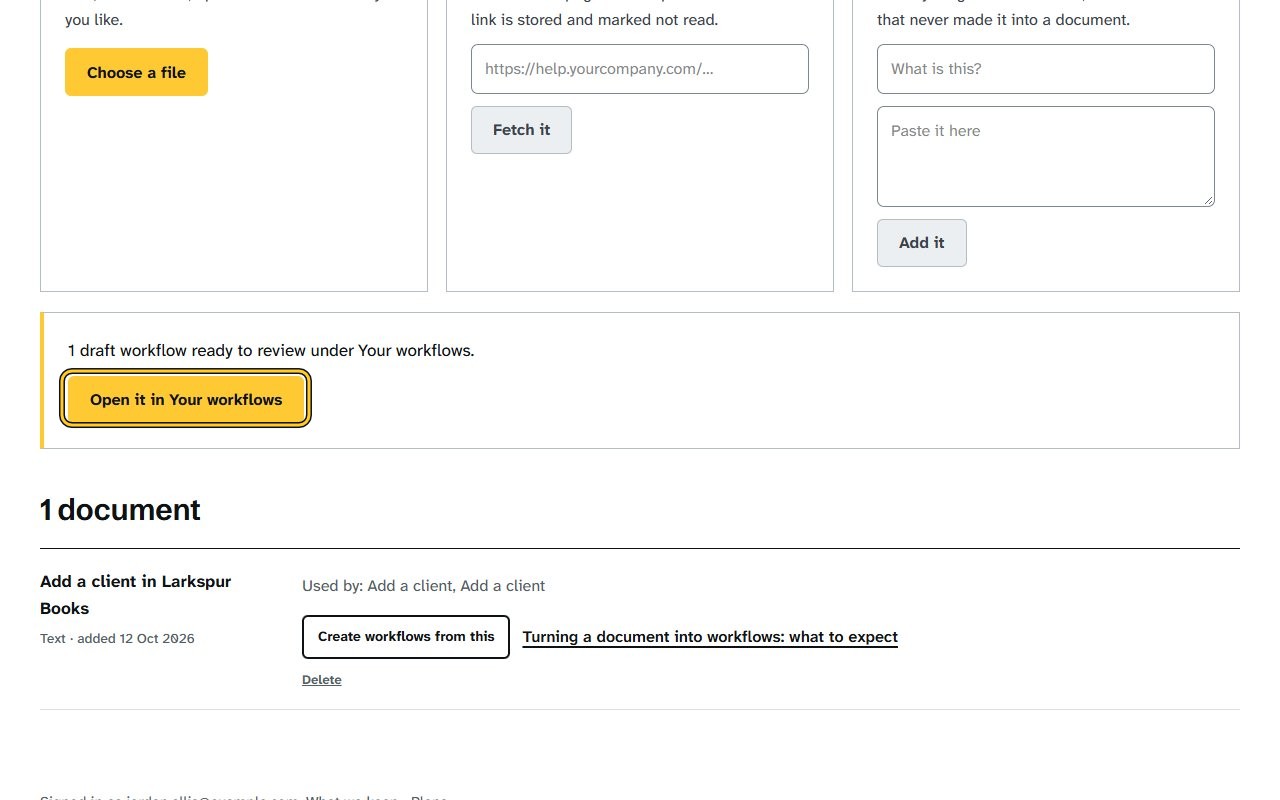
Click “Open it in Your workflows” (“Open them in Your workflows” when there is more than one). Your new drafts open under Your workflows.
If your screen looks different
Screens change from time to time, and yours may not match these pictures exactly.
Would you like to be walked through this on your own screen? You’ll be guided one step at a time, and you do every click yourself.
It needs Chrome or Edge on a computer.
This guided help needs a computer. You’re welcome to open this page on one.
Related
Write to us
If something here doesn’t match what you see, please write to hello@alongrail.com. A person reads every message.