If the sign-in email doesn’t arrive
What to try when the sign-in email is slow or missing, and how to sign in with its code instead.
Enter your email address in the Email field; the Send me a link button becomes active and highlighted.
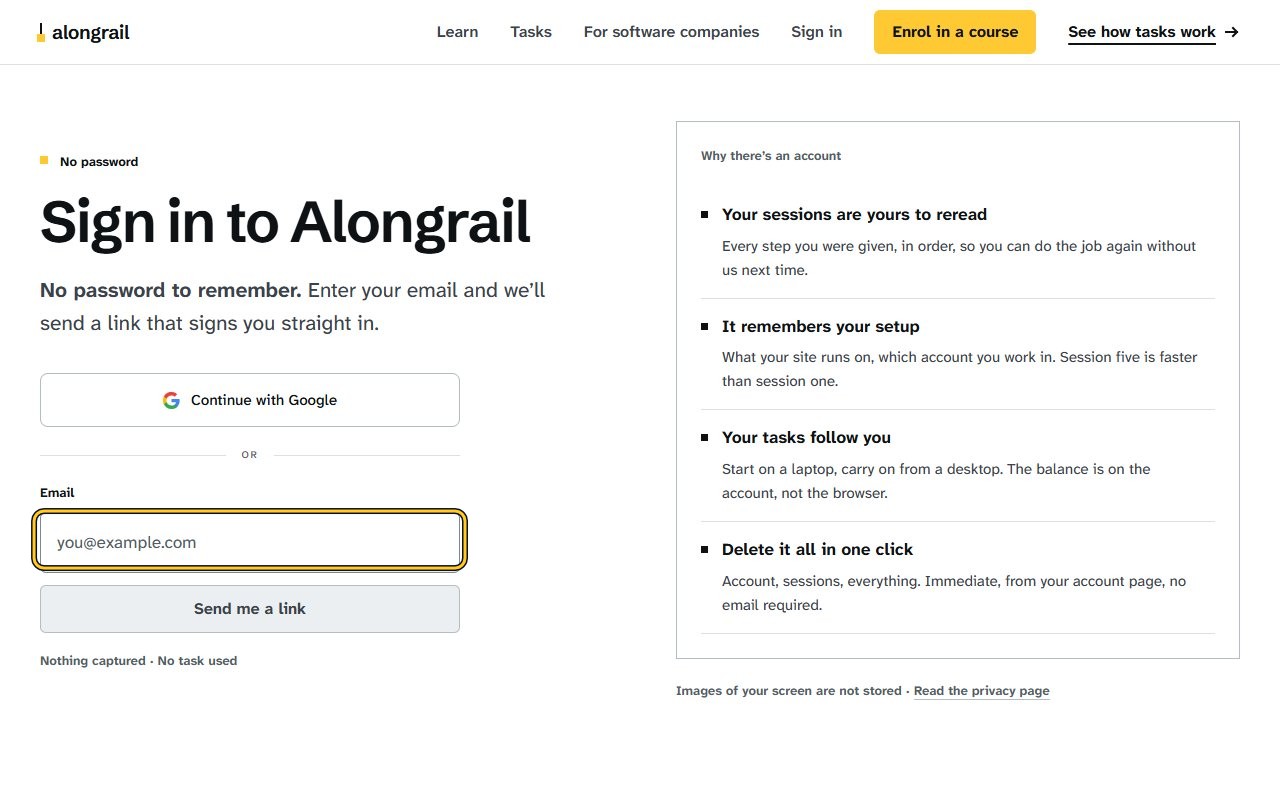
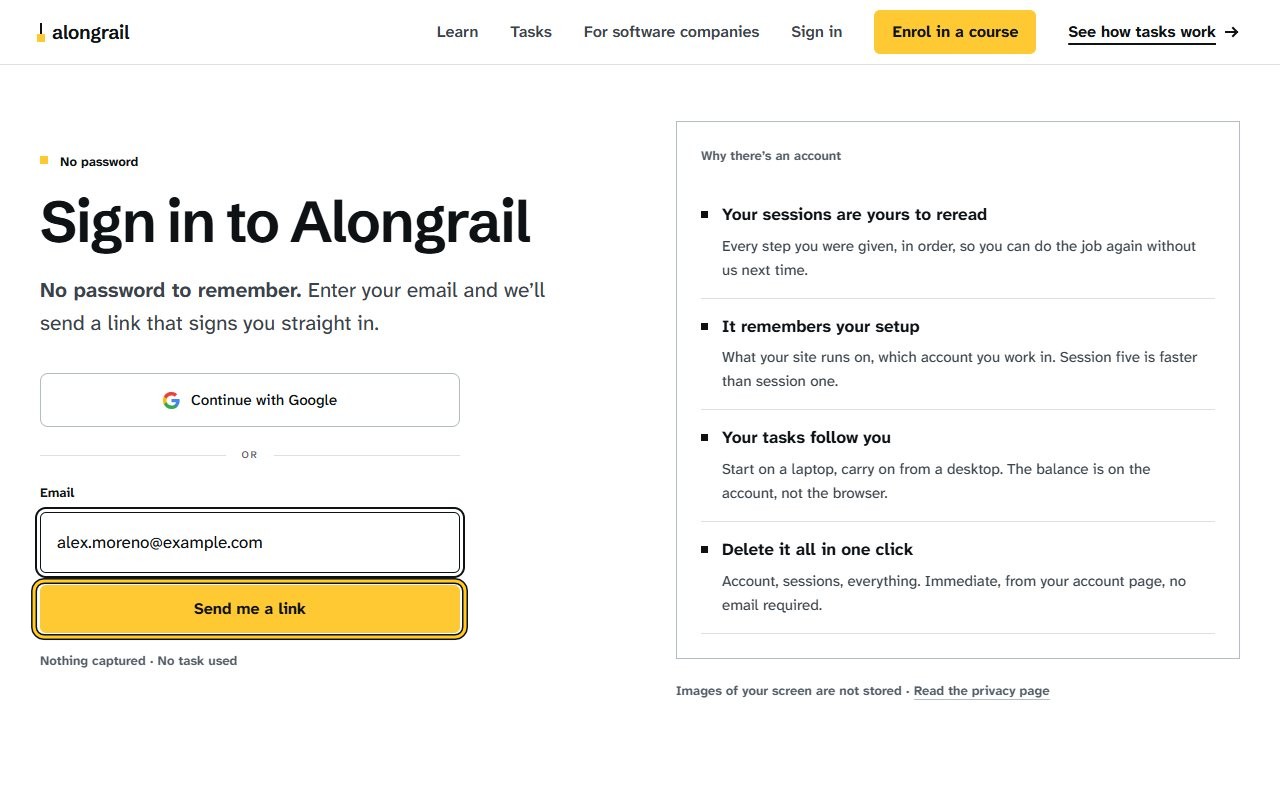
Click the Send me a link button; the page shows Check your email with a field to type the code from the email.
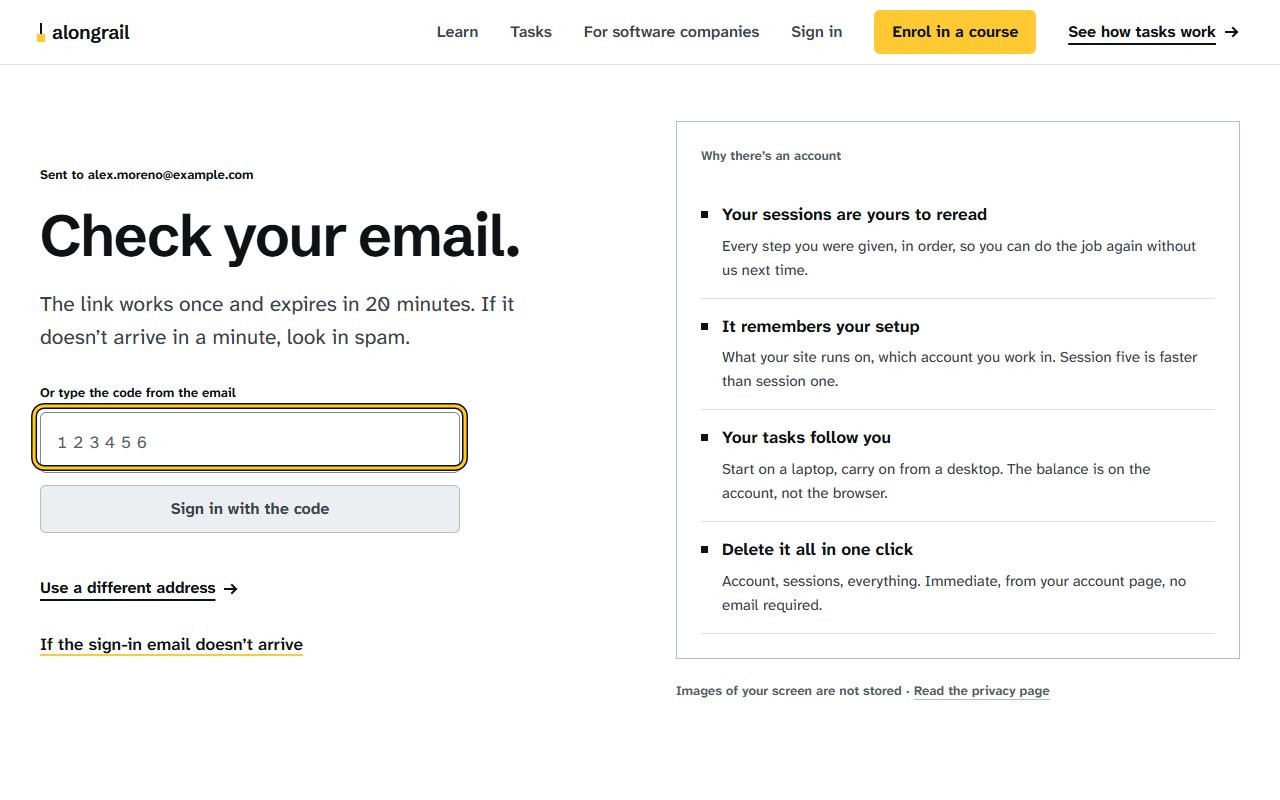
Type the code from the email into the code field; the Sign in with the code button becomes active and highlighted.
If the email doesn’t arrive
The email can take a minute. If it hasn’t come, here is what usually helps.
- Look in your spam or junk folder.
- Wait a minute and try once more: press “Use a different address”, check the address you typed, and press “Send me a link” again.
- The link works once and lasts 20 minutes.
- The same email has a six-digit code. You can type it into the sign-in page instead of opening the link.
- Some workplace mail systems open links before you do, to check them, which can use the link up. The code is the dependable way in that case.
If your screen looks different
Screens change from time to time, and yours may not match these pictures exactly.
Write to us
If something here doesn’t match what you see, please write to hello@alongrail.com. A person reads every message.